
Categories
Tag Cloud
cpanel
Cyber Threats
database
Domain
Epp Code
Facebook
Firefox
Google
graphics design in Kenya
Hosting
How to create a free website in Kenya
how to stay safe with PayPal
http error 500
Internet Explorer Browser
iOS
iPhone
Microsoft Bing
Safari Browser
simple steps to register a domain
spam
spamexperts
ssl certificate
web hosting kenya
Web security
webhosting in Kenya
webmail
website
website design in kenya
Website Designers in Kenya
What is XOVI NOW
windows 10
winodws 11
Wordpress
Yandex
Copying and Moving Files in File Manager
2 found this helpful
Listen to this article
Playback Settings
1.0×
1.0
- Log into cPanel.
- Under Files, click File Manager.
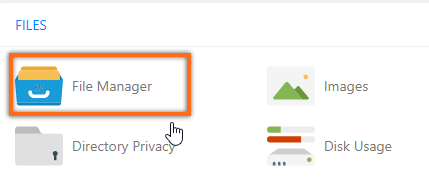
- In the popup, select Web Root and Show Hidden Files, then click Go.
- Locate and select the files or folders you want to copy or move (hold Ctrl to select multiple items or hold Shift to select a group of items).
- With the appropriate files and folders selected, click Copy or Move File from the top menu. Alternatively, you can right-click on the selected files and folders and click Copy or Move from the menu as pictured below.
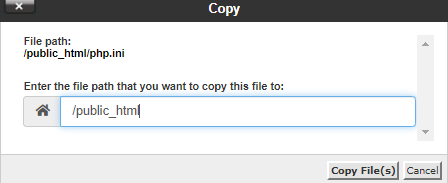
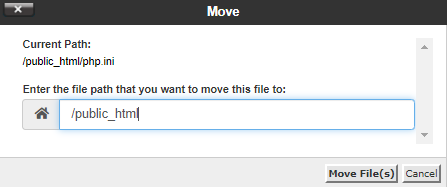
- Type in the destination path of your files. You can retain the /public_html and type in / and your folder name if you wish to copy over your file to a directory inside the public_html.
-
Click Copy File(s) or Move File(s) to place the file to its destination.
Note: The copy and move tools act very similarly. While the Move tool will remove the files from the directory (folder) they are currently in and place them in the new directory, the copy tool will copy the files so that they exist in both the original and new directories.
Credits: Hostgator
If you need specific help, contact our Support Team. or call us directly at +254105503412
Feel free to click the thumbs up below to help many others in need of similar solutions, thank you and God bless!
- Log into cPanel.
- Under Files, click File Manager.
- In the popup, select Web Root and Show Hidden Files, then click Go.
- Locate and select the files or folders you want to copy or move (hold Ctrl to select multiple items or hold Shift to select a group of items).
- With the appropriate files and folders selected, click Copy or Move File from the top menu. Alternatively, you can right-click on the selected files and folders and click Copy or Move from the menu as pictured below.
- Type in the destination path of your files. You can retain the /public_html and type in / and your folder name if you wish to copy over your file to a directory inside the public_html.
-
Click Copy File(s) or Move File(s) to place the file to its destination.
Note: The copy and move tools act very similarly. While the Move tool will remove the files from the directory (folder) they are currently in and place them in the new directory, the copy tool will copy the files so that they exist in both the original and new directories.
Credits: Hostgator
If you need specific help, contact our Support Team. or call us directly at +254105503412
Feel free to click the thumbs up below to help many others in need of similar solutions, thank you and God bless!
Was this answer helpful?
Related Articles
How to Create a New Folder in cPanel File Manager
Using folders enables you to organise and structure your files more effectively and makes it...
Set up Cron Job in Cpanel or Plesk Server
What is Cron Job?
A cron job is a Linux command used for scheduling tasks to be...
How to change PHP version in Cpanel
From your cPanel control panel, you can change your php version within minutes.
Follow these...
is .well-known folder necessary
is .well-known folder necessary? Yes, when ordering an SSL Certificate, you must prove domain...
How to increase the max_input_vars limit in cPanel
Hey there! There are certain scenarios in which you may need to make changes to your PHP...
Tag Cloud
cpanel
Cyber Threats
database
Domain
Epp Code
Facebook
Firefox
Google
graphics design in Kenya
Hosting
How to create a free website in Kenya
how to stay safe with PayPal
http error 500
Internet Explorer Browser
iOS
iPhone
Microsoft Bing
Safari Browser
simple steps to register a domain
spam
spamexperts
ssl certificate
web hosting kenya
Web security
webhosting in Kenya
webmail
website
website design in kenya
Website Designers in Kenya
What is XOVI NOW
windows 10
winodws 11
Wordpress
Yandex



