
Categories
Tag Cloud
How to increase the max_input_vars limit in cPanel
Hey there! There are certain scenarios in which you may need to make changes to your PHP configuration e.g when installing an new wordpress theme, wodpress or joomla plugin . Normally one is required to edit a file on your server called php.ini, and to increase the max_input_vars limit. Luckily most Shared Hosting have provision for this.
max_input_vars is a setting managed through the PHP setting which limits the number of inputs that you can set when posting forms.
While we as SINO SOFT do not allow global changes to the PHP.ini configurations on our servers as a security measure, per account PHP configuration changes can be made directly from our cPanel by following these steps:
1) Log into cPanel.
2) Look for the SOFTWARE section and click on Select PHP version or Search for it in the search section
The PHP Selector is not included by default in all cPanel accounts, if this is the case contact your web host to activate the same for you
 cPanel > Software > Select PHP Version
3) In the new window click on the Switch To PHP Options button.
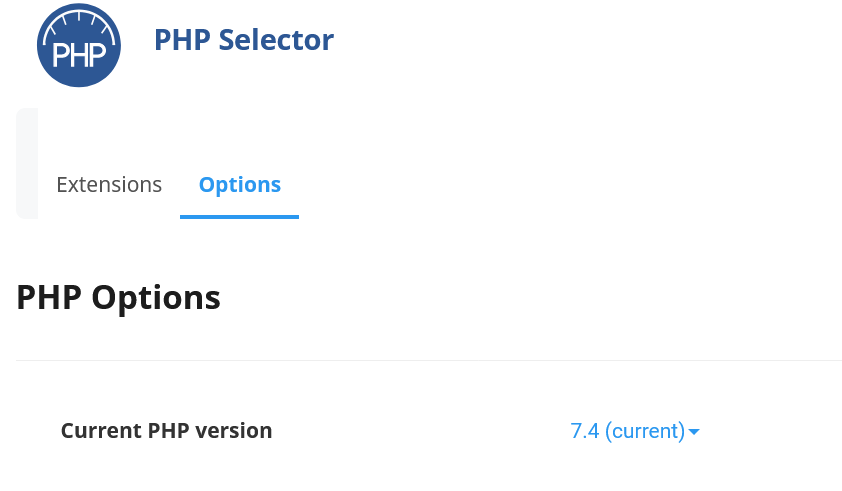
4) Here you can locate the max_input_vars and enter the value that you require.
Check your script, plugin, or theme’s documentation (or an on-screen error message) to find the correct value.
Yay! you have successfully managed to change your max_input_vars. Please Don't forget to hit the thumbs up to help someone else get the same solution you just did! God's blessings in Christ Jesus!
Hey there! There are certain scenarios in which you may need to make changes to your PHP configuration e.g when installing an new wordpress theme, wodpress or joomla plugin . Normally one is required to edit a file on your server called php.ini, and to increase the max_input_vars limit. Luckily most Shared Hosting have provision for this.
max_input_vars is a setting managed through the PHP setting which limits the number of inputs that you can set when posting forms.
While we as SINO SOFT do not allow global changes to the PHP.ini configurations on our servers as a security measure, per account PHP configuration changes can be made directly from our cPanel by following these steps:
1) Log into cPanel.
2) Look for the SOFTWARE section and click on Select PHP version or Search for it in the search section
The PHP Selector is not included by default in all cPanel accounts, if this is the case contact your web host to activate the same for you
cPanel > Software > Select PHP Version
3) In the new window click on the Switch To PHP Options button.
4) Here you can locate the max_input_vars and enter the value that you require.
Check your script, plugin, or theme’s documentation (or an on-screen error message) to find the correct value.
Yay! you have successfully managed to change your max_input_vars. Please Don't forget to hit the thumbs up to help someone else get the same solution you just did! God's blessings in Christ Jesus!



