
Categories
Tag Cloud
cpanel
Cyber Threats
database
Domain
Epp Code
Facebook
Firefox
Google
graphics design in Kenya
Hosting
How to create a free website in Kenya
how to stay safe with PayPal
http error 500
Internet Explorer Browser
iOS
iPhone
Microsoft Bing
Safari Browser
simple steps to register a domain
spam
spamexperts
ssl certificate
web hosting kenya
Web security
webhosting in Kenya
webmail
website
website design in kenya
Website Designers in Kenya
What is XOVI NOW
windows 10
winodws 11
Wordpress
Yandex
How to Add or Upgrade Additional OX Suite Mailboxes
2 found this helpful
Listen to this article
Playback Settings
1.0×
1.0
After purchasing OX App Suite or OX App Suite + Productivity, the service will appear in your Client Area Dashboard. Additional OX email accounts and mailbox upgrades can only be managed through the Client Area.
Steps to Add or Upgrade OX Suite Mailboxes
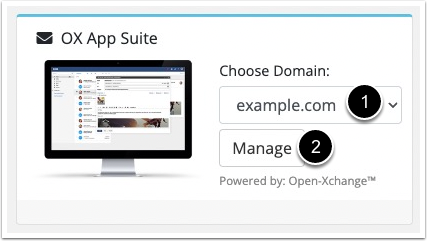
- Select your domain under Choose Domain in the Client Area Dashboard widget.
- Click Manage.
- A list of your OX App Suite email addresses will appear together with mailbox details and account information. The page will also display the current number of available mailboxes.
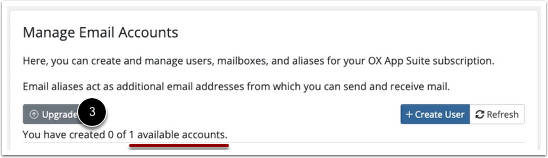
- Click Upgrade to increase the number of available mailbox accounts.
- Upgrade options for mailbox quantity and mailbox type will appear.
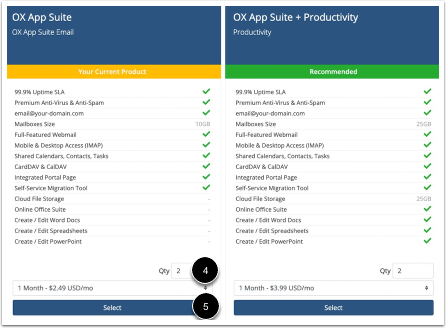
- Select the desired total quantity under Qty. For example, if you currently have 1 mailbox and enter 2, one additional mailbox will be added to your account.
- During this process, you can also upgrade from OX App Suite to OX App Suite + Productivity if needed.
- Click Select to place your order and confirm the mailbox upgrade.
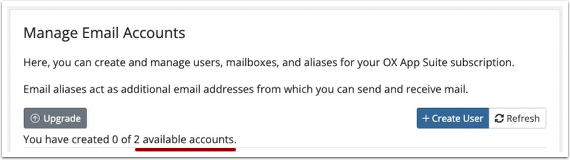
OX Suite Mailbox Upgrade Complete
Once the upgrade is completed, the updated number of OX App Suite mailbox accounts will be displayed in your email account list.
After purchasing OX App Suite or OX App Suite + Productivity, the service will appear in your Client Area Dashboard. Additional OX email accounts and mailbox upgrades can only be managed through the Client Area.
Steps to Add or Upgrade OX Suite Mailboxes
- Select your domain under Choose Domain in the Client Area Dashboard widget.
- Click Manage.
- A list of your OX App Suite email addresses will appear together with mailbox details and account information. The page will also display the current number of available mailboxes.
- Click Upgrade to increase the number of available mailbox accounts.
- Upgrade options for mailbox quantity and mailbox type will appear.
- Select the desired total quantity under Qty. For example, if you currently have 1 mailbox and enter 2, one additional mailbox will be added to your account.
- During this process, you can also upgrade from OX App Suite to OX App Suite + Productivity if needed.
- Click Select to place your order and confirm the mailbox upgrade.
OX Suite Mailbox Upgrade Complete
Once the upgrade is completed, the updated number of OX App Suite mailbox accounts will be displayed in your email account list.
Was this answer helpful?
Related Articles
Change time zone and language settings OX App Suite
Learn how to change the timezone in OX App Suite webmail using the configuration menu....
How to Create an Application Password in OX App Suite (Webmail Method)
All mailboxes are secured with a password that includes both letters and numbers. You can...
How to Reset an Email Password in OX App Suite (Admin / Client Area Method)
If you have access to the client area, you can reset any mailbox password directly without...
How to Configure OX App Suite Email in Microsoft Outlook (IMAP & POP3 Settings)
Setting up your OX App Suite email account in Microsoft Outlook is quick and straightforward....
How to Fix OX Outbound Error 450 4.2.0 – Recipient Temporarily Rejected (OXSUS0006_404)
Overview
When sending emails through OX Mail, you may encounter the following error:
450...
Tag Cloud
cpanel
Cyber Threats
database
Domain
Epp Code
Facebook
Firefox
Google
graphics design in Kenya
Hosting
How to create a free website in Kenya
how to stay safe with PayPal
http error 500
Internet Explorer Browser
iOS
iPhone
Microsoft Bing
Safari Browser
simple steps to register a domain
spam
spamexperts
ssl certificate
web hosting kenya
Web security
webhosting in Kenya
webmail
website
website design in kenya
Website Designers in Kenya
What is XOVI NOW
windows 10
winodws 11
Wordpress
Yandex



