
Categories
Tag Cloud
How to Create an Application Password in OX App Suite (Webmail Method)
All mailboxes are secured with a password that includes both letters and numbers. You can generate a secure application password for use with email apps such as Outlook, iPhone, or Android Mail.
Alternative Option: If you have access to the client area, you can reset the mailbox password as an administrator. Click here to view the admin password reset guide.
Step-by-Step Guide
Step 1
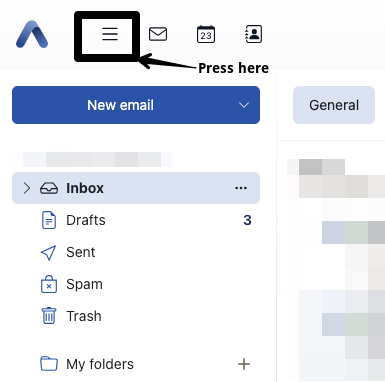
Log in to OX Webmail and click on the hamburger menu located at the top left corner of the screen.
Step 2
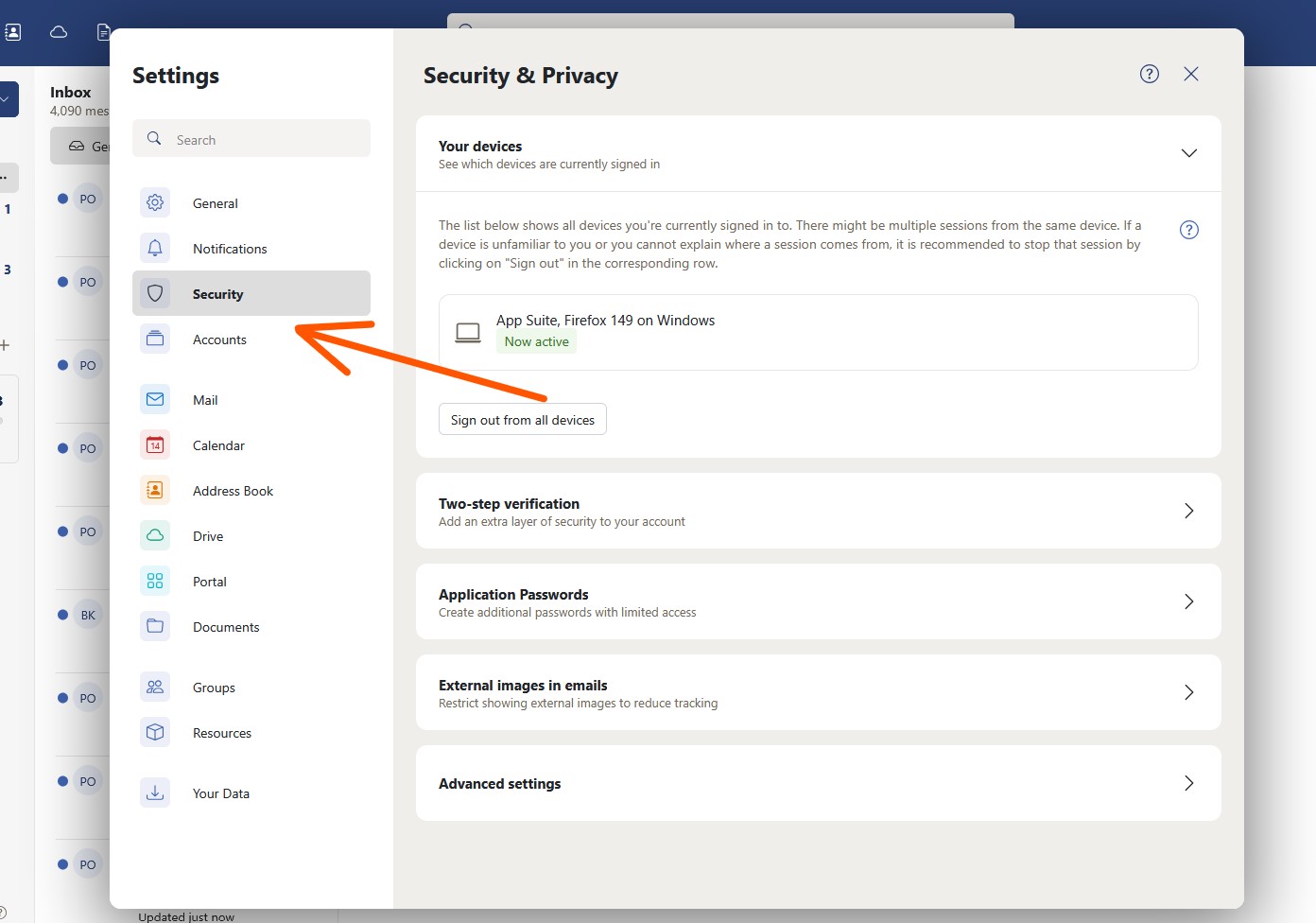
From the dropdown menu, click on Settings, then navigate to Security.
Step 3
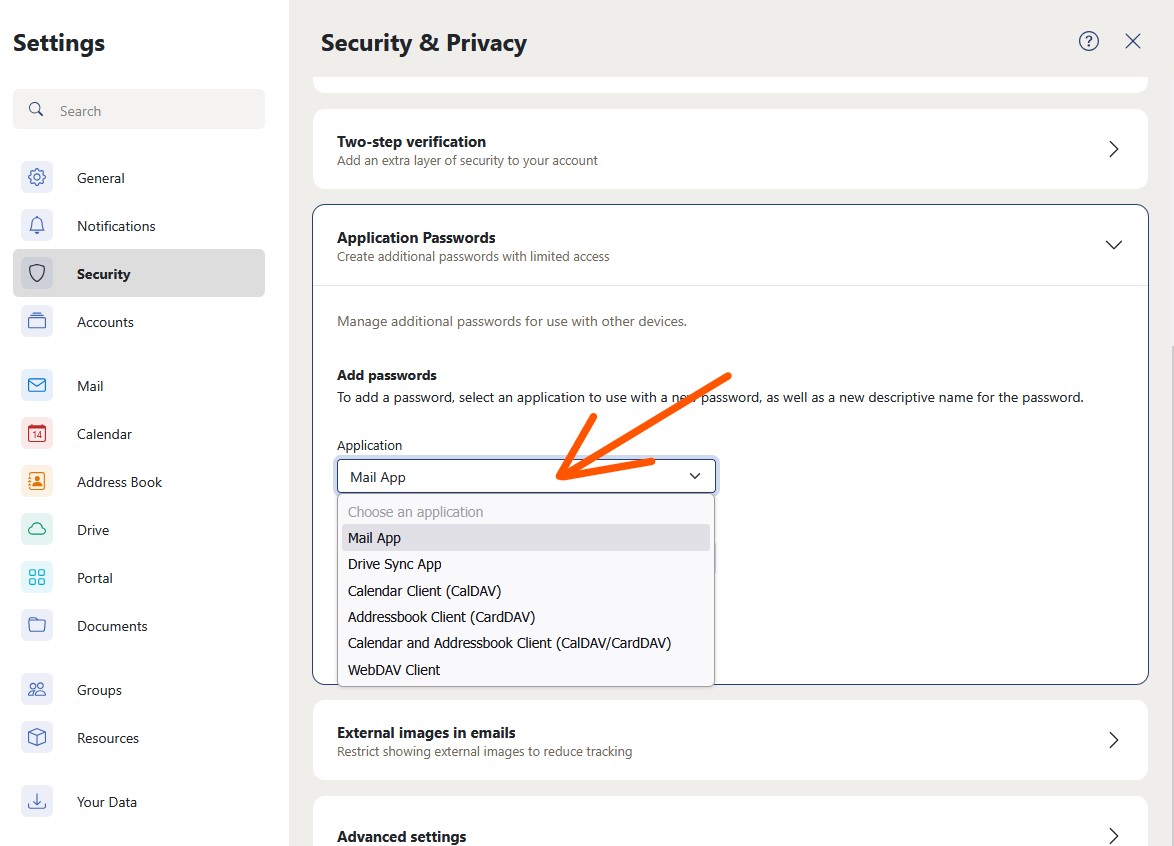
Under the Security section, select Application Passwords (also referred to as App Passwords).
Step 4
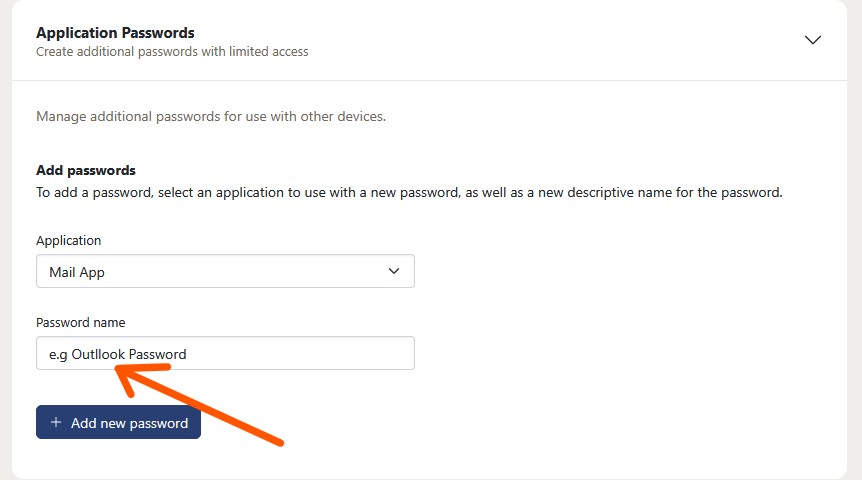
Click on Add New Password, then enter a name to identify the device or application (for example: Outlook, Phone, or Mail App).
Step 5
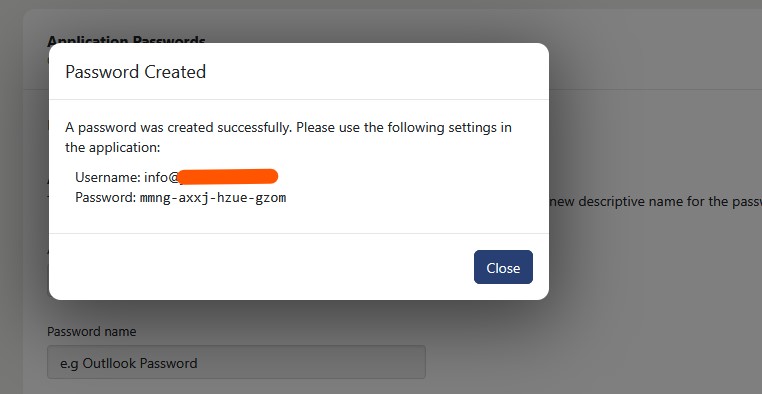
Generate the password. Once it is displayed, copy it immediately and store it in a secure location.
Step 6
Important: This password will only be shown once and cannot be retrieved later. If you lose it, you will need to generate a new one.

Looking for a more reliable email experience? Try our professional OX App email hosting for secure and business-ready communication: Explore Professional Email Plans.
All mailboxes are secured with a password that includes both letters and numbers. You can generate a secure application password for use with email apps such as Outlook, iPhone, or Android Mail.
Alternative Option: If you have access to the client area, you can reset the mailbox password as an administrator. Click here to view the admin password reset guide.
Step-by-Step Guide
Step 1
Log in to OX Webmail and click on the hamburger menu located at the top left corner of the screen.
Step 2
From the dropdown menu, click on Settings, then navigate to Security.
Step 3
Under the Security section, select Application Passwords (also referred to as App Passwords).
Step 4
Click on Add New Password, then enter a name to identify the device or application (for example: Outlook, Phone, or Mail App).
Step 5
Generate the password. Once it is displayed, copy it immediately and store it in a secure location.
Step 6
Important: This password will only be shown once and cannot be retrieved later. If you lose it, you will need to generate a new one.
Looking for a more reliable email experience? Try our professional OX App email hosting for secure and business-ready communication: Explore Professional Email Plans.



