
What is the Difference Between cPanel and Client Area?
When managing your web hosting account, you’ll often come across two main interfaces: the Client Area and cPanel.
Each has a specific role in managing your hosting services, from billing and account details to website and server management.
In this guide, we’ll explore the functions, differences, and use cases of the Client Area and cPanel, along with helpful tips on utilizing each interface securely and efficiently.
Table of Contents
3. The Differences Between Client Area and cPanel
- Primary Function
- Access to Support
- Billing Management
- File Management
- Email Management
- Domain and DNS Settings
- Security Features
4. When to Use the Client Area vs. cPanel
6. Essential Security Aspects of Client Area and cPanel
7. Common FAQs and Troubleshooting Tips
9. Beginner’s Guide to Using cPanel
10. Managing Billing in the Client Area
11. Top 5 Security Settings in cPanel
12. Conclusion
What is the Client Area?
First off, the Client Area is the primary portal provided by your hosting provider for managing your hosting account. Its main purpose is to handle administrative and account-related tasks, and it is note this-separate from cPanel, which is used for website-specific management.
Here’s what you can do in the Client Area:
- Manage Billing and Payments: You can view and pay invoices, set up automatic payments, and keep track of your billing history.
- Access Customer Support: Submit support tickets, initiate live chats, and explore helpful resources like knowledge base articles.
- Update Account Information: with ease, update your contact details and other personal information.
- Purchase and Renew Services: Buy new hosting plans, upgrade existing services, or renew subscriptions.
- Enable Security Features: Many Client Areas allow you to enable two-factor authentication (2FA) for added account protection for your account.
By accessing the Client Area, you can handle essential tasks that keep your hosting account organized and up to date, without needing to enter the technical side of your website.
What is cPanel?
cPanel is a control panel designed specifically for technical and website management tasks. Through cPanel, you can:
- Manage Website Files and Databases: Access the File Manager to upload, edit, and organize files and set up MySQL databases for your website’s back-end functionality.
- Configure Email Accounts: Create custom email addresses, set up email forwarding, and manage spam filters directly through the cPanel interface.
- Handle Domain and DNS Settings: Add new domains, create subdomains, set up redirects, and configure DNS records.
- Set Up Website Security: cPanel includes built-in security features like SSL/TLS certificate management, IP blocking, and ModSecurity, which acts as a firewall to protect your site from common web attacks.
With cPanel, you can take full control of the technical elements that keep your website functioning smoothly and securely.
Learn: How to Clear Cache from cPanel
The Differences Between Client Area and cPanel
We are breaking down the differences between the Client Area and cPanel to help you understand when to use each one:
When to Use the Client Area vs. cPanel
To make things clearer, here are typical use cases for each interface:
- Use the Client Area for managing your billing, renewing services, accessing customer support, and handling account-level updates.
- Use cPanel for website management tasks, including file management, email setup, database management, and implementing site security features.
You can also read: How to Access my cPanel Correctly
Client Area vs. cPanel
For a quick visual reference, here’s what each interface generally looks like:
- Client Area: Typically includes sections for billing, support, and services management. Here, you can easily find payment information and support options. (Consider including a labeled screenshot of the Client Area)
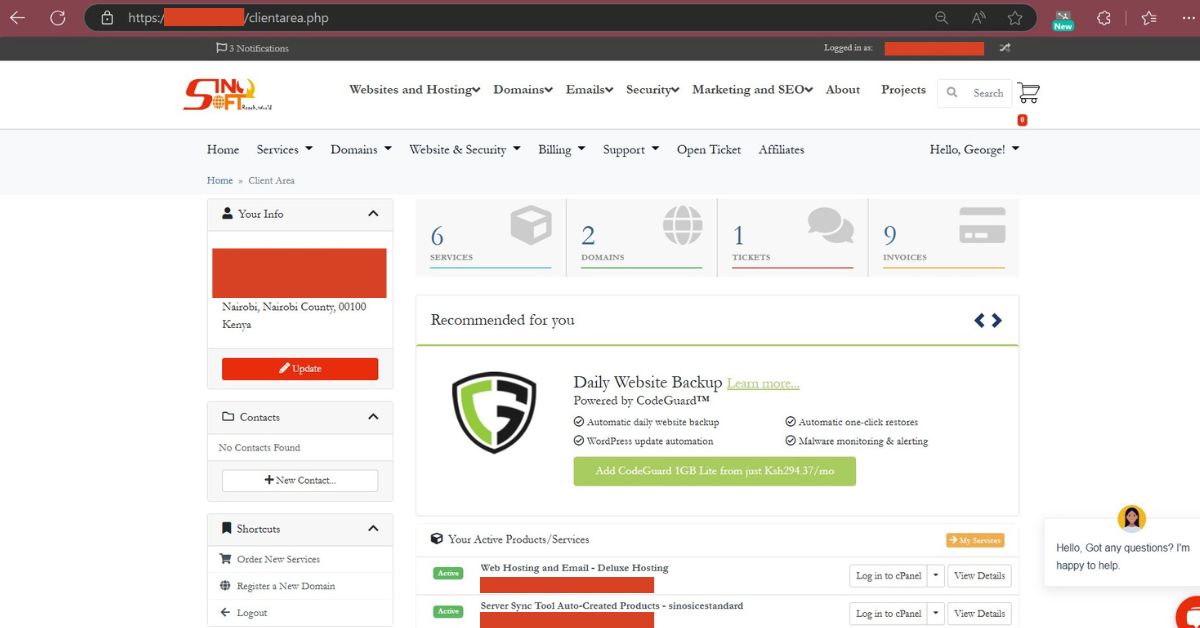
Screenshot of Client area Interface
cPanel: Usually displays a dashboard with icons for File Manager, Email, Domains, and Security settings, giving you quick access to website-specific tools.
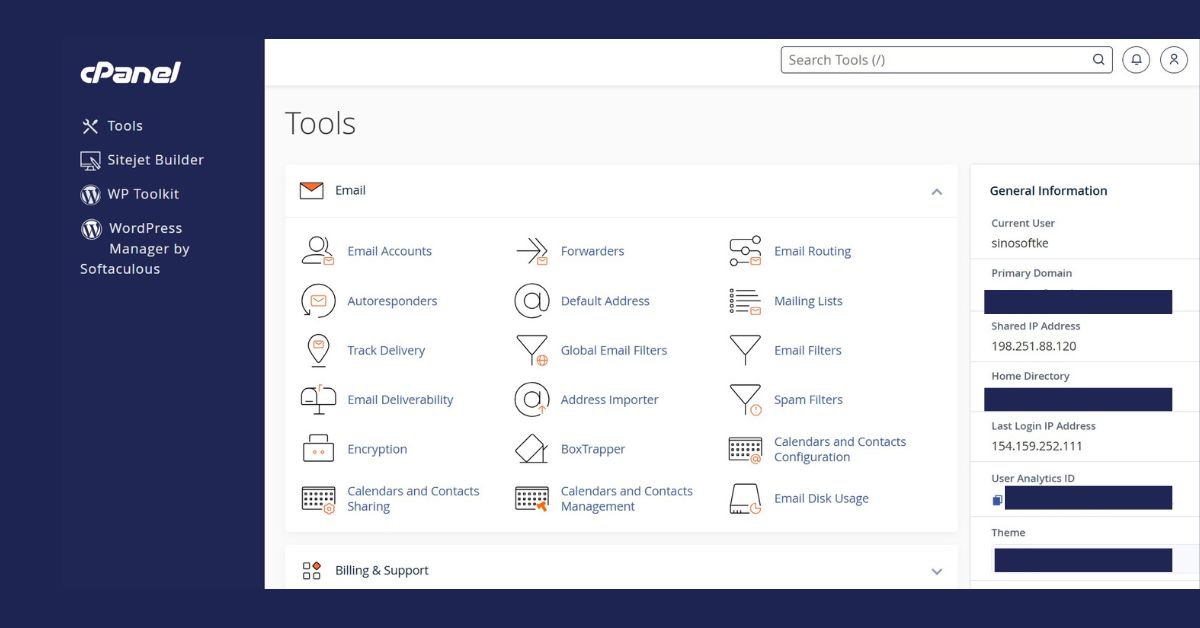 Screenshot of the cPanel interface
EssentiaL Security Aspects of Client Area and cPanel
Both the Client Area and cPanel offer security features, but each serves different purposes:
- Client Area Security: It protects account information like billing and contact details, with features like two-factor authentication (2FA) to enhance account protection.
- cPanel Security: This is designed for website security, offering tools like SSL/TLS certificates, IP blocking, password-protected directories, and ModSecurity to defend against web threats.
Pro Tip: Enable 2FA in both the Client Area and cPanel (if available) to maximize security for both your account and website.
Common FAQs and Troubleshooting Tips

Here are answers to common questions and troubleshooting tips for each interface you can reset it through the Client Area under “Account Settings” or “cPanel Access” in your hosting service settings.
- Billing Updates in cPanel: Note that update of billing details cannot done in cPanel. To do it, you will have to head to the Client Area to manage your payment information.
Further Learning Resources
If you are new to web hosting, here are additional guides that will deepen your understanding of managing your account:
Beginner’s Guide to Using cPanel
Gain a strong foundation in cPanel by learning:
- Navigating the Dashboard: A guide to the key sections, including File Manager, Email, and Domains.
- Managing Files and Databases: Tips on using the File Manager and creating MySQL databases for website functionality.
- Setting Up DNS and Domains: Detailed steps on managing subdomains, redirects, and DNS settings.
- SSL Setup: A quick guide to enabling SSL/TLS for HTTPS and improved website security.
For more, check: Beginner’s Guide to Using cPanel
Managing Billing in the Client Area
Discover the ins and outs of billing and account management in the Client Area:
- Invoice and Payment Management: Access invoices, set up auto-payments, and download transaction history.
- Payment Method Updates: A guide to adding new cards, linking PayPal, or updating existing details.
- Auto-Renewal Setup: Ensure uninterrupted service with automatic renewals or learn how to renew services manually.
Is your cPanel lagging? Learn how to increase email space in cpanel
Top 5 Security Settings in cPanel
Learn the top cPanel settings for website security:
- SSL/TLS for Secure Browsing: A quick setup guide for SSL/TLS certificates.
- IP Blocking: How to block specific IP addresses to prevent unauthorized access.
- Password-Protected Directories: Keep sensitive directories secure with password protection.
- Hotlink Protection: Protect your website's media files by blocking external links to your content.
- ModSecurity: Enable firewall protection with ModSecurity to prevent common attacks.
Learn more: Recommended Security Settings Checklist
Conclusion
I hope that you can now tell the differences between the Client Area and cPanel this guide has simplified everything and made it easier for you to manage your hosting account effectively.
In a short sentence, the Client Area focuses on account-level management, while cPanel enables you to take charge of your website’s technical setup.
With these tools and additional resources, you are now well equipped to optimize both your hosting account and website.
Learn also: How to Create a New Folder in cPanel File Manager
Did you find this information helpful? Click the thumbs up below for us to know whether it helped or not.
Have any questions? Feel free to contact us today.



