
Categories
Tag Cloud
How to add a Gmail account to Outlook for Windows
You can add a Gmail account to Microsoft Outlook, to view and manage your email in one place.
The steps below will help you add a Gmail account to new Outlook, or manage an existing account by deleting it or making it your primary account.
Add a new Gmail account
-
On the View tab, select View settings.
-
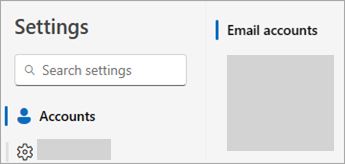
Select Accounts > Email accounts.
-
From the email accounts pane, you can now select the option to Add account, Manage an existing account.
-
Select Add Account, then in the Suggested account dropdown, add the Gmail account you want to add, and select Continue.

-
Follow the prompts to complete the process. On the Google account permissions window, select Allow.
-
Once your Gmail account is successfully added to Outlook, select Done, or add another email account.
Remove an account or set a primary account
-
On the View tab, select View settings.
-
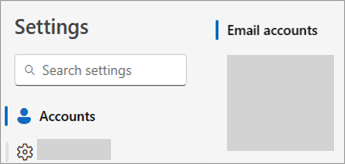
Select Accounts > Email accounts.
-
Select Manage next to the existing account you would like to remove or set as the primary account.
-
Under Account details, select the option to either Remove, or Set as primary account.
-
When you're finished, select Return to accounts page, or close the Settings window.
Related Article
How to add a Gmail account to Outlook for Mac
Credit: Microsoft
You can add a Gmail account to Microsoft Outlook, to view and manage your email in one place.
The steps below will help you add a Gmail account to new Outlook, or manage an existing account by deleting it or making it your primary account.
Add a new Gmail account
-
On the View tab, select View settings.
-
Select Accounts > Email accounts.
-
From the email accounts pane, you can now select the option to Add account, Manage an existing account.
-
Select Add Account, then in the Suggested account dropdown, add the Gmail account you want to add, and select Continue.
-
Follow the prompts to complete the process. On the Google account permissions window, select Allow.
-
Once your Gmail account is successfully added to Outlook, select Done, or add another email account.
Remove an account or set a primary account
-
On the View tab, select View settings.
-
Select Accounts > Email accounts.
-
Select Manage next to the existing account you would like to remove or set as the primary account.
-
Under Account details, select the option to either Remove, or Set as primary account.
-
When you're finished, select Return to accounts page, or close the Settings window.
Related Article
How to add a Gmail account to Outlook for Mac
Credit: Microsoft



