
Categories
Tag Cloud
How to add a Gmail account to Outlook for Mac
You can add a Gmail account to Microsoft Outlook, to view and manage your email, calendar, and contacts, all in one place.
To add a Gmail account:
-
In the Outlook menu, select Settings.
-
Select Accounts, then the plus (+) button and Add an account.
-
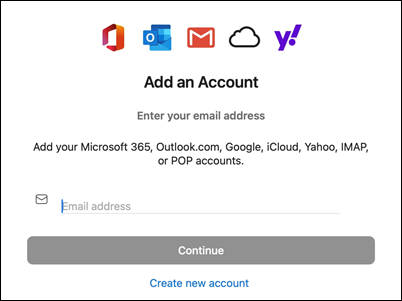
Type your email address then Continue and follow the prompts.
-
Follow the prompts to complete the process. On the Google account permissions window, select Allow.
-
Once your Gmail account is successfully added to Outlook, select Done, or add another email account.
To set the Gmail account as primary:
-
In the Outlook menu, select Settings.
-
Select Accounts, then the Gmail account you would like make the primary account.
-
Select the Rearrange accounts (...) button, then Set as Default.
To remove the Gmail account:
-
In the Outlook menu, select Settings.
-
Select Accounts, then the Gmail account you would like to remove.
-
Select the minus (-) button, then select Sign Out to remove the account.
-
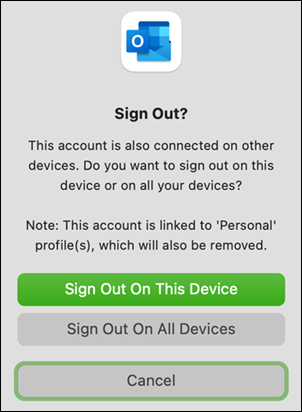
You might receive a message that "This account is also connected on other devices." and to either Sign Out On This Device or Sign Out On All Devices:
-
For Sign Out On This Device - Your Gmail account will only be removed from the device you are currently on.
-
For Sign Out On All Devices - Your Gmail account will be removed from all of your devices.
-
Related Article
How to add a Gmail account to Outlook for Windows
Credit Microsoft
You can add a Gmail account to Microsoft Outlook, to view and manage your email, calendar, and contacts, all in one place.
To add a Gmail account:
-
In the Outlook menu, select Settings.
-
Select Accounts, then the plus (+) button and Add an account.
-
Type your email address then Continue and follow the prompts.
-
Follow the prompts to complete the process. On the Google account permissions window, select Allow.
-
Once your Gmail account is successfully added to Outlook, select Done, or add another email account.
To set the Gmail account as primary:
-
In the Outlook menu, select Settings.
-
Select Accounts, then the Gmail account you would like make the primary account.
-
Select the Rearrange accounts (...) button, then Set as Default.
To remove the Gmail account:
-
In the Outlook menu, select Settings.
-
Select Accounts, then the Gmail account you would like to remove.
-
Select the minus (-) button, then select Sign Out to remove the account.
-
You might receive a message that "This account is also connected on other devices." and to either Sign Out On This Device or Sign Out On All Devices:
-
For Sign Out On This Device - Your Gmail account will only be removed from the device you are currently on.
-
For Sign Out On All Devices - Your Gmail account will be removed from all of your devices.
-
Related Article
How to add a Gmail account to Outlook for Windows
Credit Microsoft



