
Link my webmail to gmail
If you have a Sino Soft Webmail which is a non-Gmail account, use Gmailify to get many of Gmail's features with that address.
To do this, you’ll need to link your account to Gmail. After you link your account, you’ll see all your messages in your Gmail inbox, plus these changes:
First of all, you need to have your email configuration settings, this can be found by
Option A: Finding your email settings in Webmail
- Log into your Webmail.
- Click on the orange CP Icon on your left sidebar
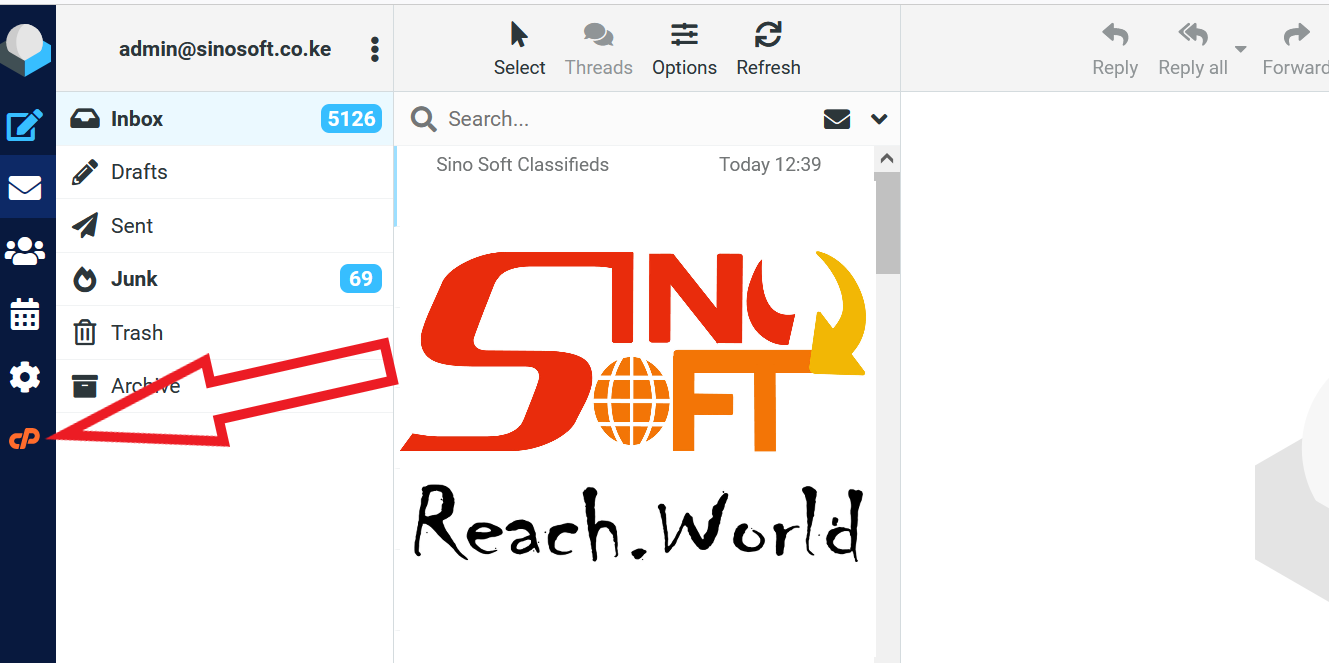
- Scroll Down to Configure Mail Client.
- Scroll down to the Manual Settings section to view your Secure SSL/TLS, and Non-SSL settings. Included will be Username, Password, Incoming Server, and Outgoing Server. There is also a notification stating “Authentication is required for IMAP, POP3, and SMTP” that looks something like this:


Option B: Finding your email settings in Cpanel
- Login into cPanel.
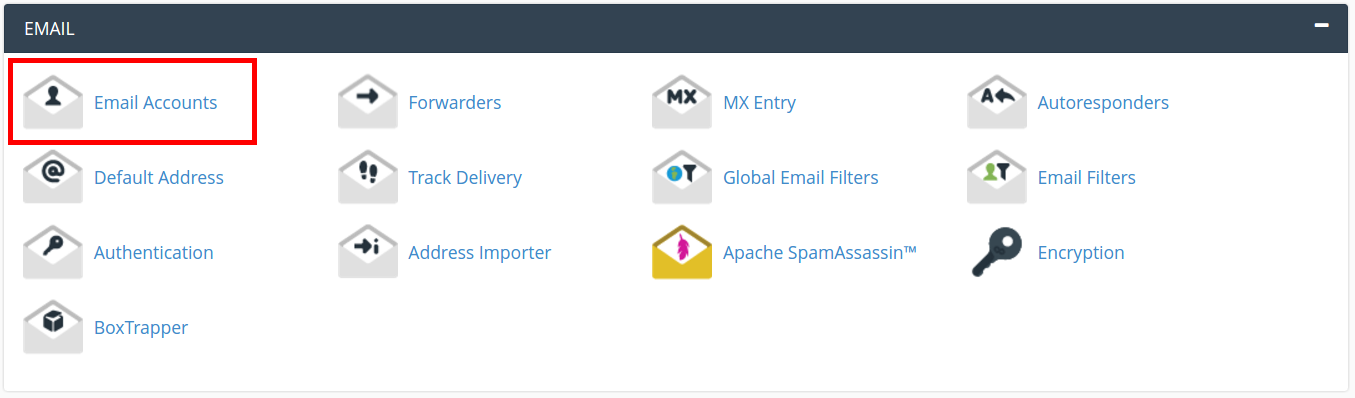
- Click Email Accounts in the Email section.
- Navigate to your email and click Connect Devices to the right of your email account.
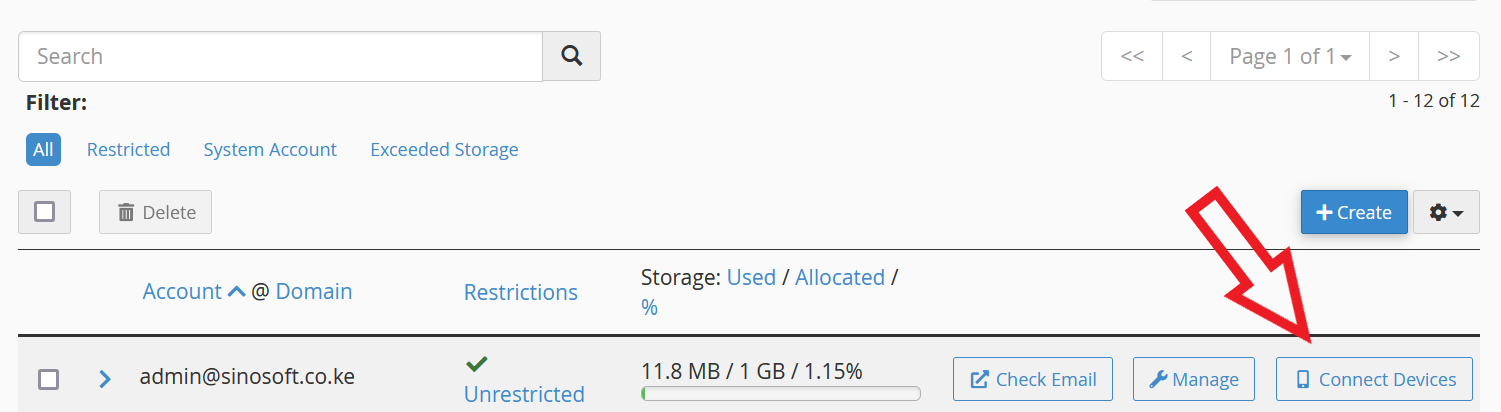
Note! If there is no email account listed, you will need to create one in cpanel. or in Sino Soft client area
- Scroll down to the Manual Settings section to view your Secure SSL/TLS and Non-SSL settings. Included will be Username, Password, Incoming Server, and Outgoing Server. There is also a notification stating “Authentication is required for IMAP, POP3, and SMTP” that looks something like this:
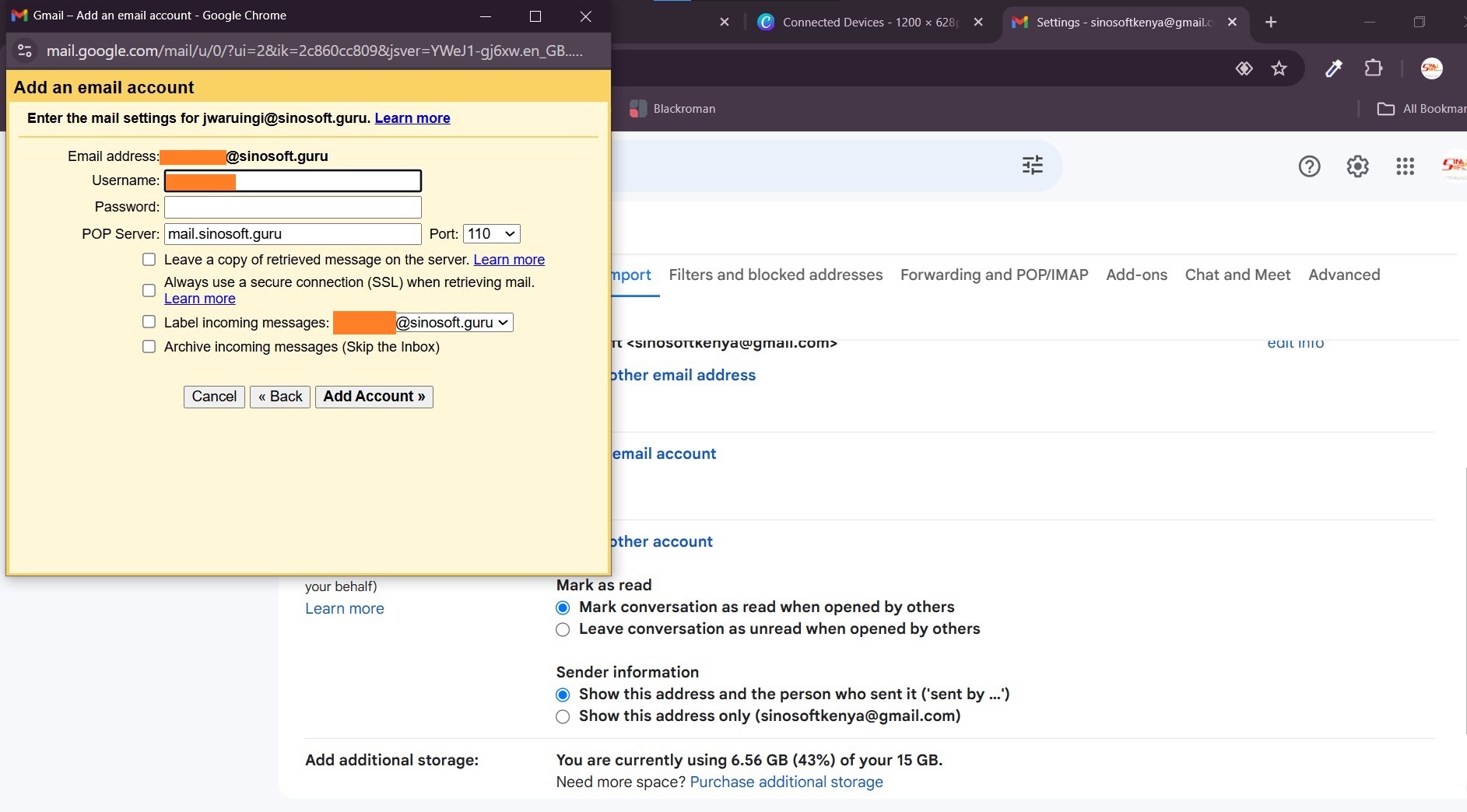
Now that you have your configuration settings you can proceed to the below steps and input where necessary the above settings e.g if asked for the incoming/outgoing server name in the above case you will put sinosoft.guru. IMAP is Port is 993 POP3 is 995 mode of authentification is SSL in this case
Link your address to Gmail
- On your computer, open Gmail.

2. In the top right, click Settings 

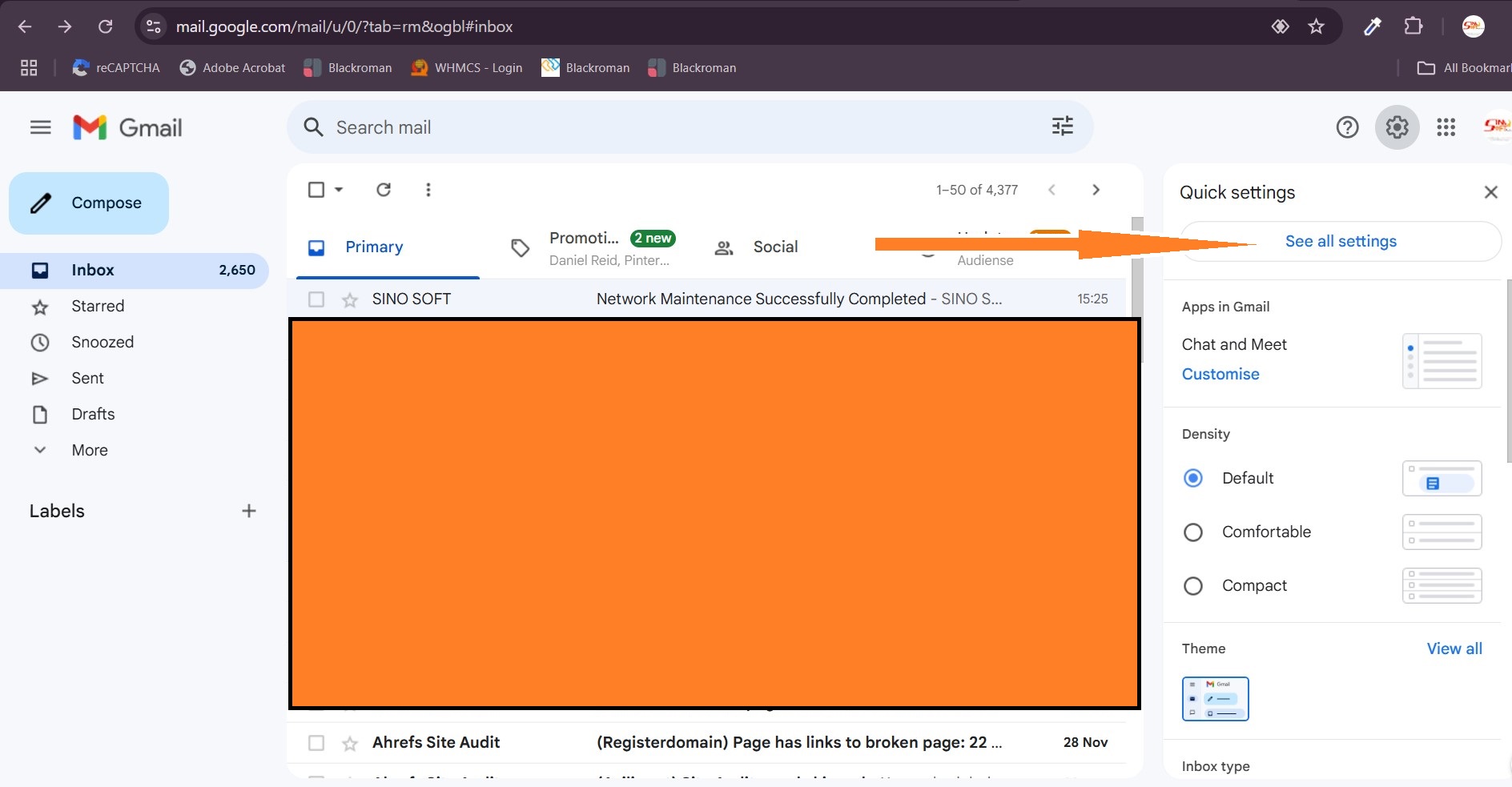
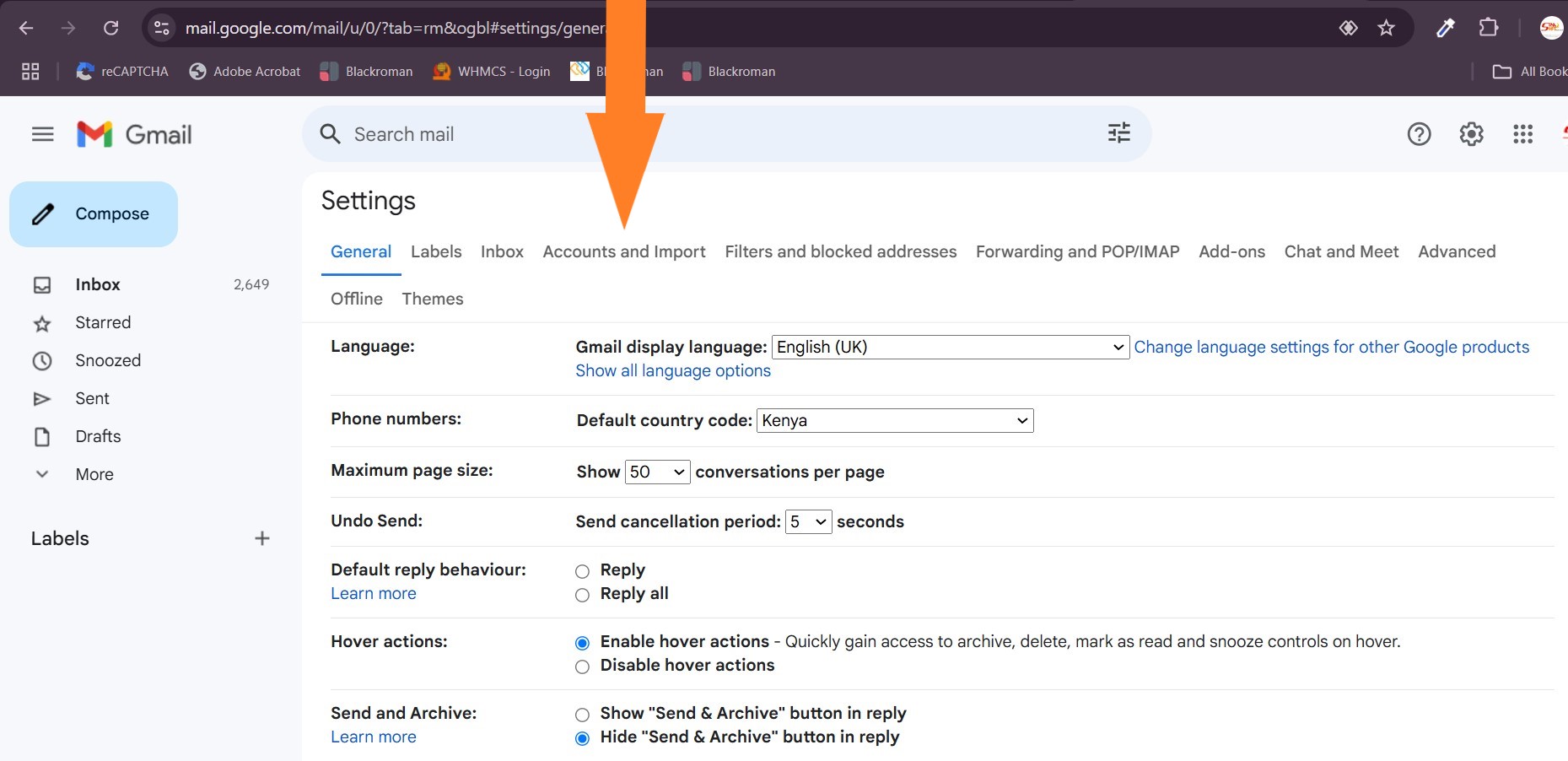
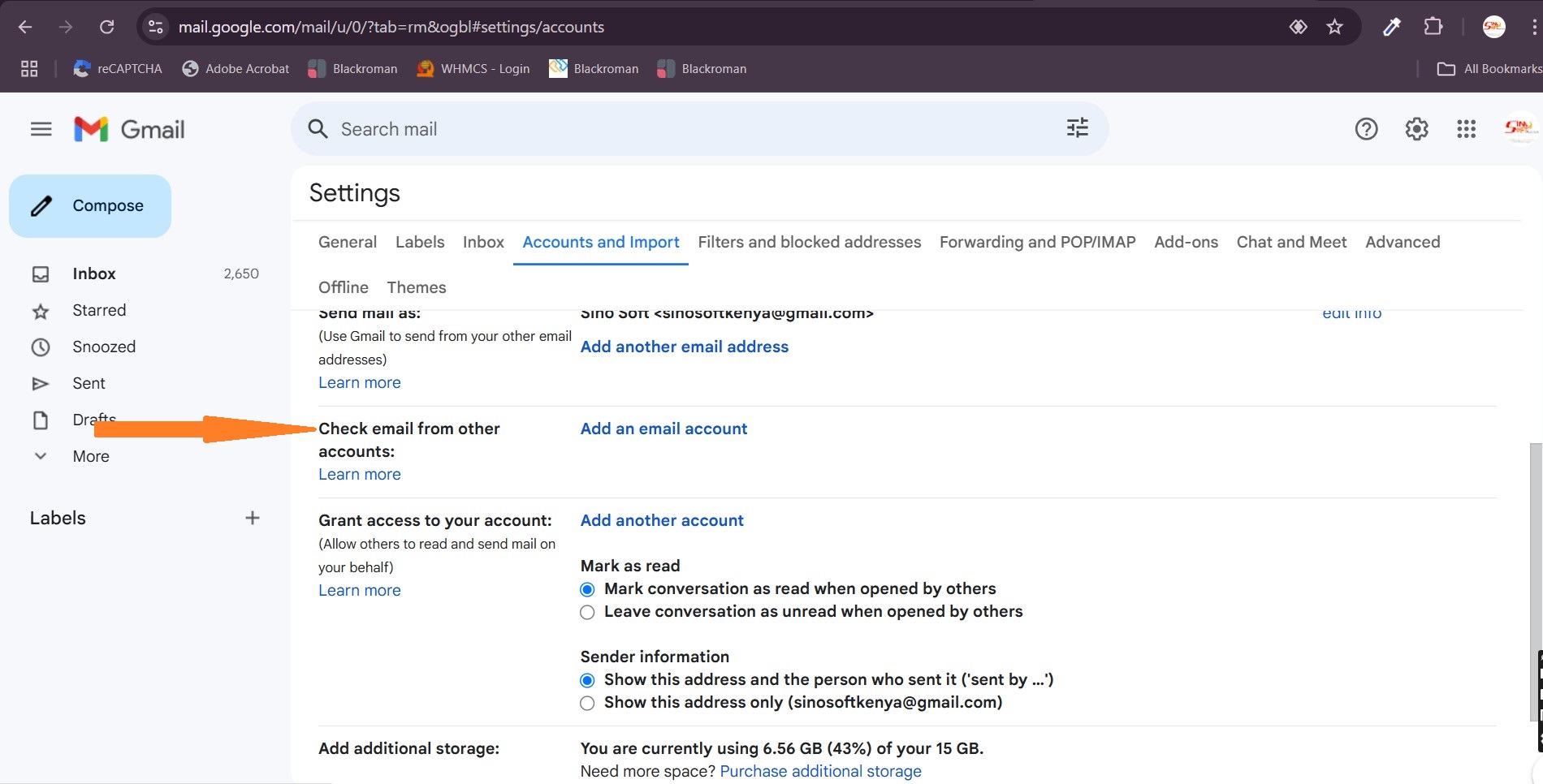
3. Click the Accounts and Import or Accounts tab.
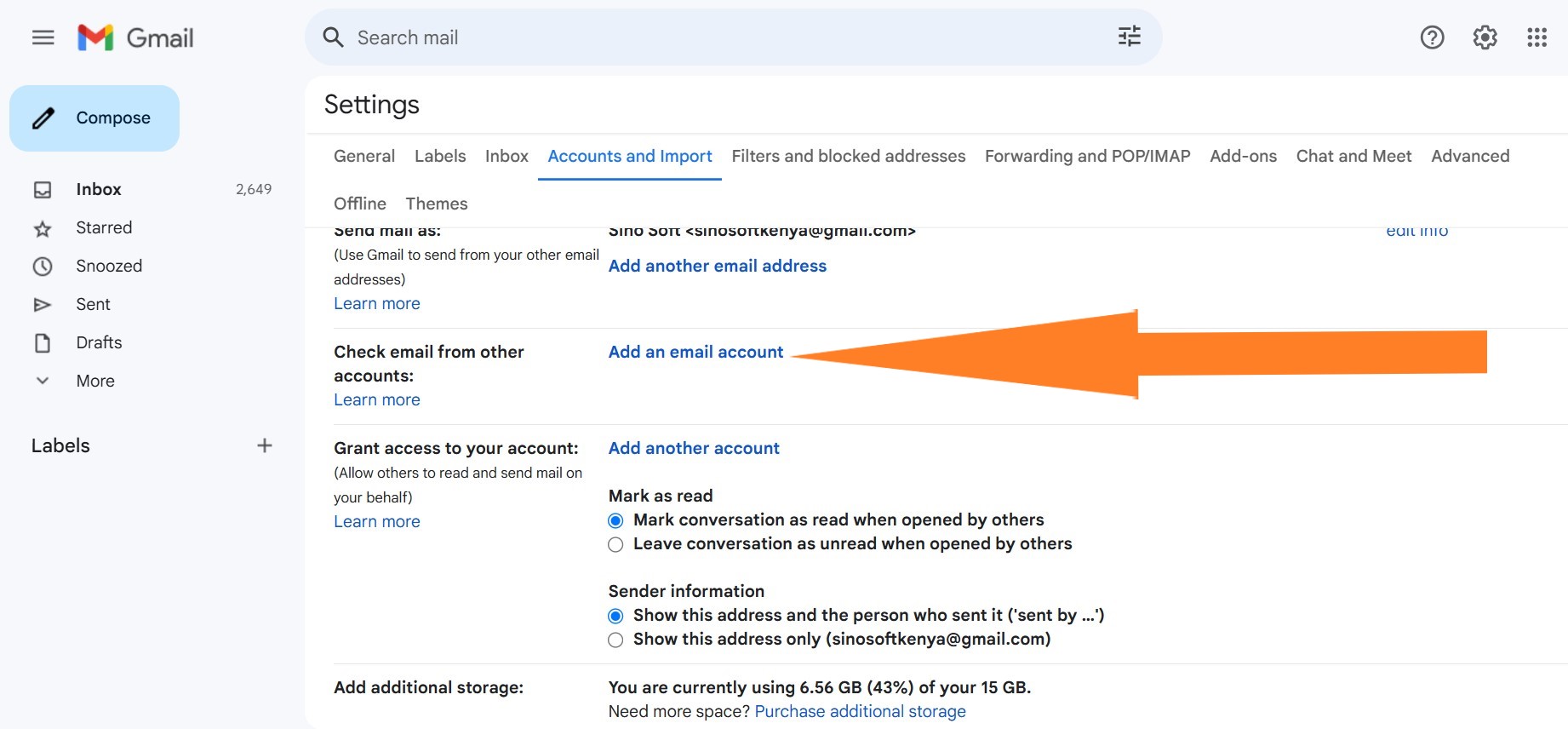
 4. In the "Check mail from other accounts" section, click Add a mail account.
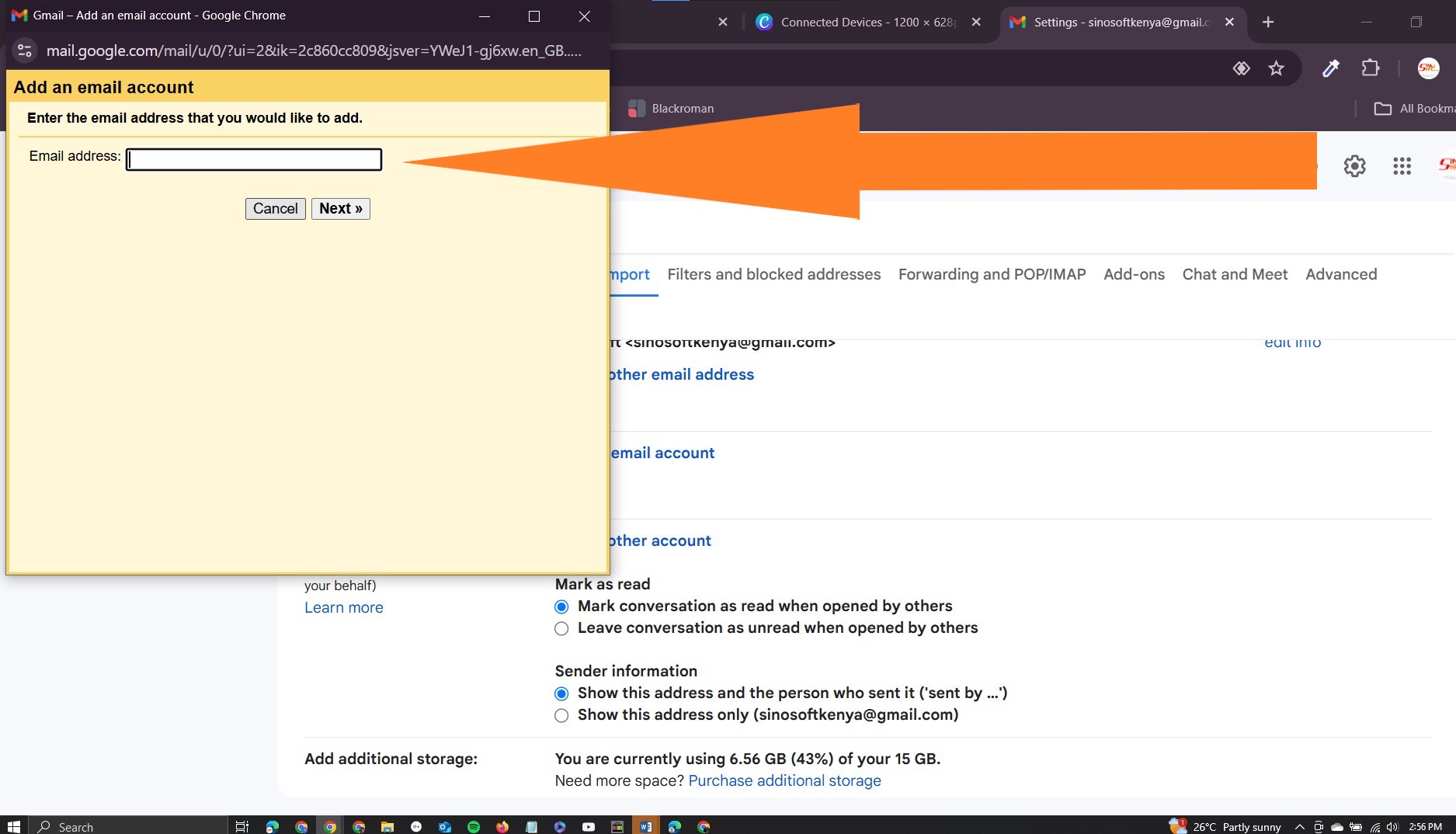
 5. Type the email address you want to link, then click Next.
6. Select Link account with Gmail (Gmailify), then click Next.
7. Follow the steps on the screen, then click Next or Sign in.
After you link your account, "Gmailify" will appear next to your email address. When you open Gmail, you’ll be able to read, reply to, and organize messages from your other account just like you do in Gmail.
Read Also: How to setup up webmail on android OS phone
Unlink your address
- On your computer, open Gmail.
- In the top right, click Settings
- Click Accounts and Import.
- In the "Check mail from other accounts" section, click unlink.
After you unlink your other account from Gmail, you can choose to keep or delete copies of your other account's messages in your Gmail inbox.
- If you delete copies from Gmail, they’ll still be in the inbox of your other service (for example, Yahoo or Hotmail).
- If you keep copies in Gmail, they’ll stay in your Gmail account. However, if you move or delete them in Gmail, these actions won’t be reflected in your other account.
Read Also:
Set up webmail to send email inside gmail
How to configure webmail in outlook
Credits: Gmail
If this article is useful kindly give us a thumbs up, God bless you in Christ Jesus



