
How to Reset Joomla Passwords

We have a couple of ways on how to reset Joomla passwords. The best way depends on the level of access rights of that Joomla username and your ability to access your database or raw server files in the server that your joomla website is hosted.
Here are two ways to reset OR change joomla passwords
a. How to Change Joomla Password in phpMyAdmin
- Log into phpMyAdmin
- Select your Joomla database name in the left menu. The database name will likely include “joom” at the end and include tables with the “jos” prefix.
- Select the “_users” table from the center list.
- Find the admin account you need to reset and select the pencil edit icon to the left.
- To the right of “password” and “varchar(100),” select the drop-down menu. Then select “MD5” to encrypt the password you’ll add in the next step.
- In the “Value” field to the right, type your new password.
- At the bottom of the page, select Go to apply changes.
- Log into the dashboard and immediately change the password to use the correct cryptographic algorithm for your Joomla version.
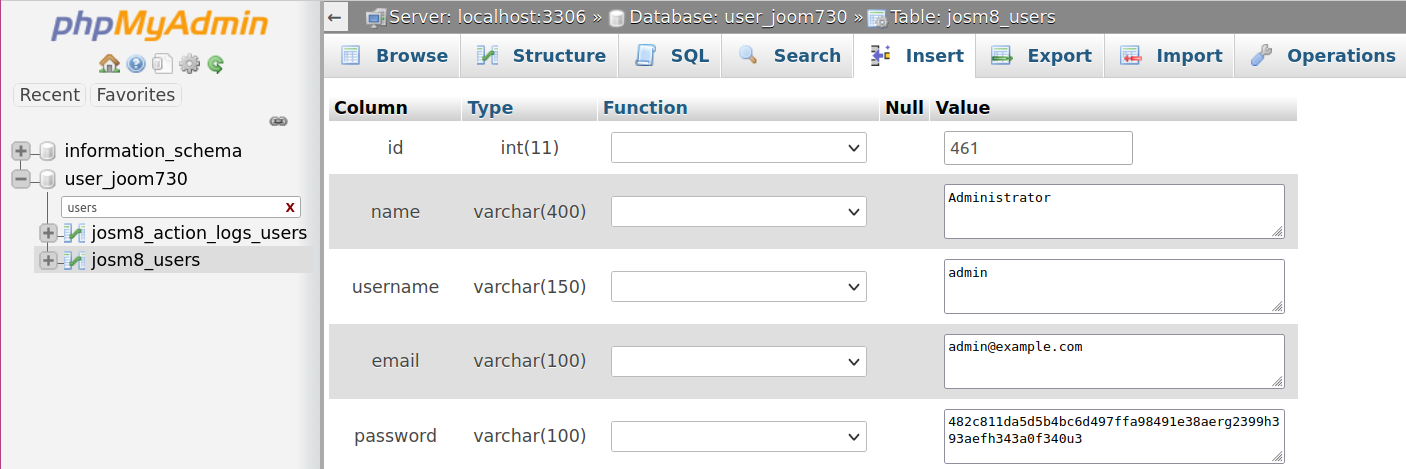 The password “value” is the MD5 hash of admin’s password.
b. Reset Joomla passwords with the configuration file
If you have multiple admin users, it is helpful to know how to reset Joomla passwords with the configuration file. This method lets you elevate an admin user with access to a temporary super user using your configuration.php file.
- Log into FTP, SSH, or cPanel Terminal.
- Navigate to the document root for your Joomla site.
- Edit the configuration.php file. You may need to change the permissions from “444” to “644”.
- Add the following to the last line before the closing
}:public $root_user='adminuser';
Replace “adminuser” with the name of your other admin user.
- Save changes.
- Log into Joomla as the temporary super user.
- On the left, select Users.
- Select the inaccessible super user account name to change the password.
- At the top, read the error block at the top and click Select here to try to do it automatically.
- Change the configuration.php file back to “444” permissions if applicable.



