
How to install Joomla! with the Softaculous App Installer
The quickest and simplest way to install Joomla! is with the Softaculous App Installer available in cPanel. Softaculous provides an easy, one-click installation that is the best choice for most website owners. If you’d prefer to install Joomla! manually, see How to manually install Joomla!
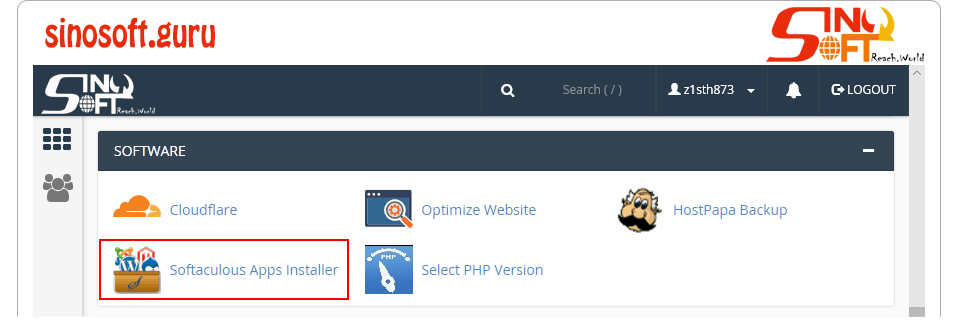
Log in to your HostPapa Dashboard and click My cPanel. Scroll down to the Software section and click Softaculous Apps Installer.
Expand the Portals/CMS menu and click Joomla. On the Overview tab, click Install Now.

In the setup section, enter the following details:
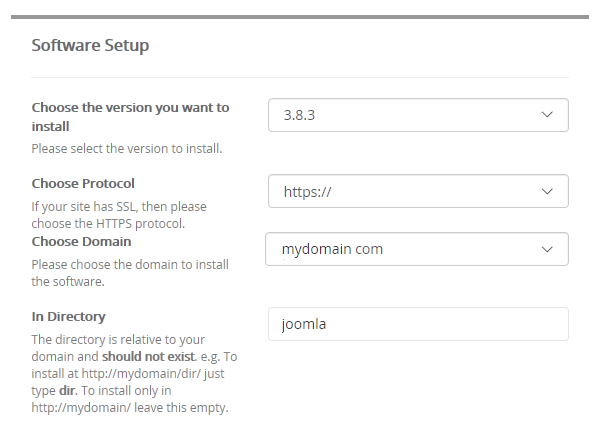
- Choose the version you want to install – In most cases, choose the default option, which is the latest stable version.
- Choose Protocol – If you use SSL on your site, choose https://.
- Choose Domain – If you have more than one domain, choose the correct domain.
- In Directory – To install Joomla! at the root of your site, leave this blank. To install in a subdirectory, enter the name of a subdirectory that you have not yet created. In our example, we’re installing in a subdirectory called joomla.
- Site Name – Enter the name of your site.
- Site Description – Enter a short description of your site.
- Import Sample Data – Choose whether to install sample data and what type.
- Admin Username – Enter a username for the admin user.
- Admin Password – Enter a strong password for the admin username.
- Real Name – Enter the admin user’s real name.
- Admin Email – Enter the email address of the admin user.
- Select Language – Select the correct language for the Joomla! back-end.
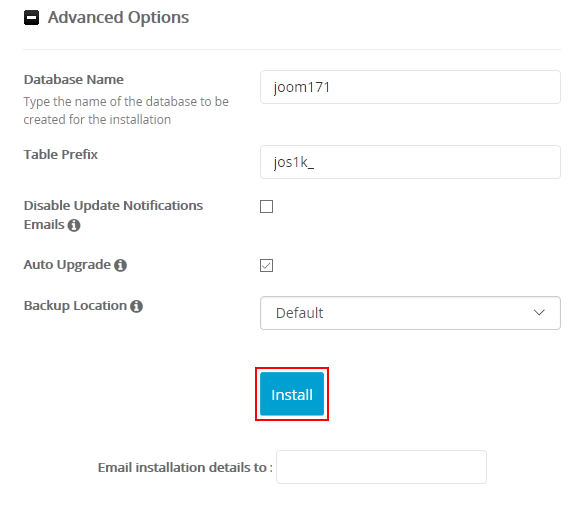
You can let Softaculous choose the database settings. If you want to manually enter these details along with upgrade, notification, and backup settings, click Advanced Options. When you’re finished entering settings, click Install.
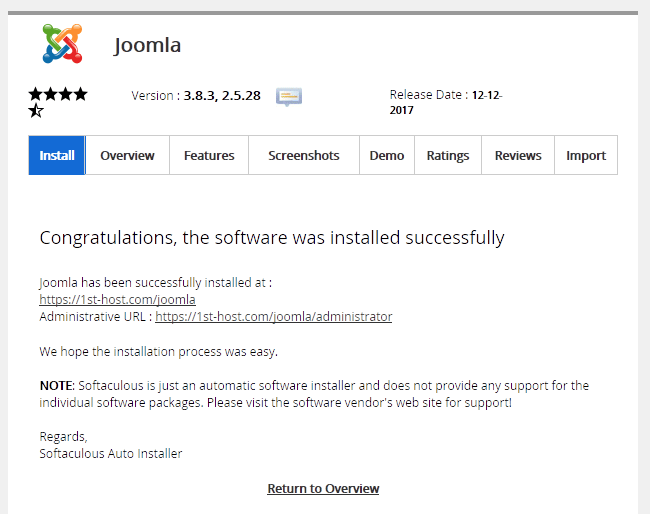
When the installation is complete you’ll see a success message and links to your Joomla! site and Joomla! administrator back-end.
Courtesy of (MT) Host Papa
If you need specific help, contact our Support Team.
Feel free to click the thumbs up below to help many others in need of similar solutions, thank you and God bless!



