
Categories
Tag Cloud
There has been a critical error o this website
Have you encounter this error before? "There has been a critical error o this website." Well we have a simple fast way to identify this common Wordpress error using wp-config.php file.
Activate WP_DEBUG
Activating WP-DEBUG and setting it to true is probably the most simple way to log problems on a WordPress site. But unfortunately, some developers don’t do this, most likely because they forget this feature exists. The default is always false
WP_DEBUG is a constant that triggers the “debug” mode in WordPress, and you can find it in the wp-config.php file. Its log can record all the activities on your site and help troubleshoot problems such as critical error on WordPress.
Step 1: Log in to your CPANEL through Client Area or by placing your domain name Here
Step 2: Search for File manager in the search Area

Step 3: Trace the root folder of your Wordpress installation mostly under public_html folder and double click on it
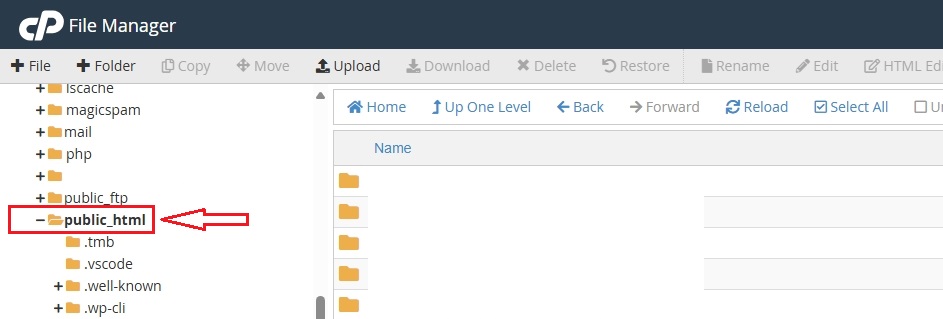
Step 4: Once inside trace wp-config.php file, right click on it and click on edit. It will open a new window

Step 5: Once the wp-config.php file is opened scroll down to the line that says define( 'WP_DEBUG', false ); in this case line 82.

Step 6: Set it to true the save. Once this is done no go to your website front end page and view the error for a detailed error.
Conclusion
We have various ways of debugging , this is just one of them. We hope it will be a great place to start helping you resolve your issue.
If you this helped don't forget to give a thumbs up. God bless you in Christ Jesus!
Have you encounter this error before? "There has been a critical error o this website." Well we have a simple fast way to identify this common Wordpress error using wp-config.php file.
Activate WP_DEBUG
Activating WP-DEBUG and setting it to true is probably the most simple way to log problems on a WordPress site. But unfortunately, some developers don’t do this, most likely because they forget this feature exists. The default is always false
WP_DEBUG is a constant that triggers the “debug” mode in WordPress, and you can find it in the wp-config.php file. Its log can record all the activities on your site and help troubleshoot problems such as critical error on WordPress.
Step 1: Log in to your CPANEL through Client Area or by placing your domain name Here
Step 2: Search for File manager in the search Area
Step 3: Trace the root folder of your Wordpress installation mostly under public_html folder and double click on it
Step 4: Once inside trace wp-config.php file, right click on it and click on edit. It will open a new window
Step 5: Once the wp-config.php file is opened scroll down to the line that says define( 'WP_DEBUG', false ); in this case line 82.
Step 6: Set it to true the save. Once this is done no go to your website front end page and view the error for a detailed error.
Conclusion
We have various ways of debugging , this is just one of them. We hope it will be a great place to start helping you resolve your issue.
If you this helped don't forget to give a thumbs up. God bless you in Christ Jesus!



