
How to edit or publish a post in wordpress
This article shows you how to edit and publish already existing post using blocks, to Add New Post read on How To Add a New Post in WordPress - A Comprehensive Guide
Presuming you now already know how to Add New Post you may now explore the below guide on creating media-reach pages and post
WordPress Editor
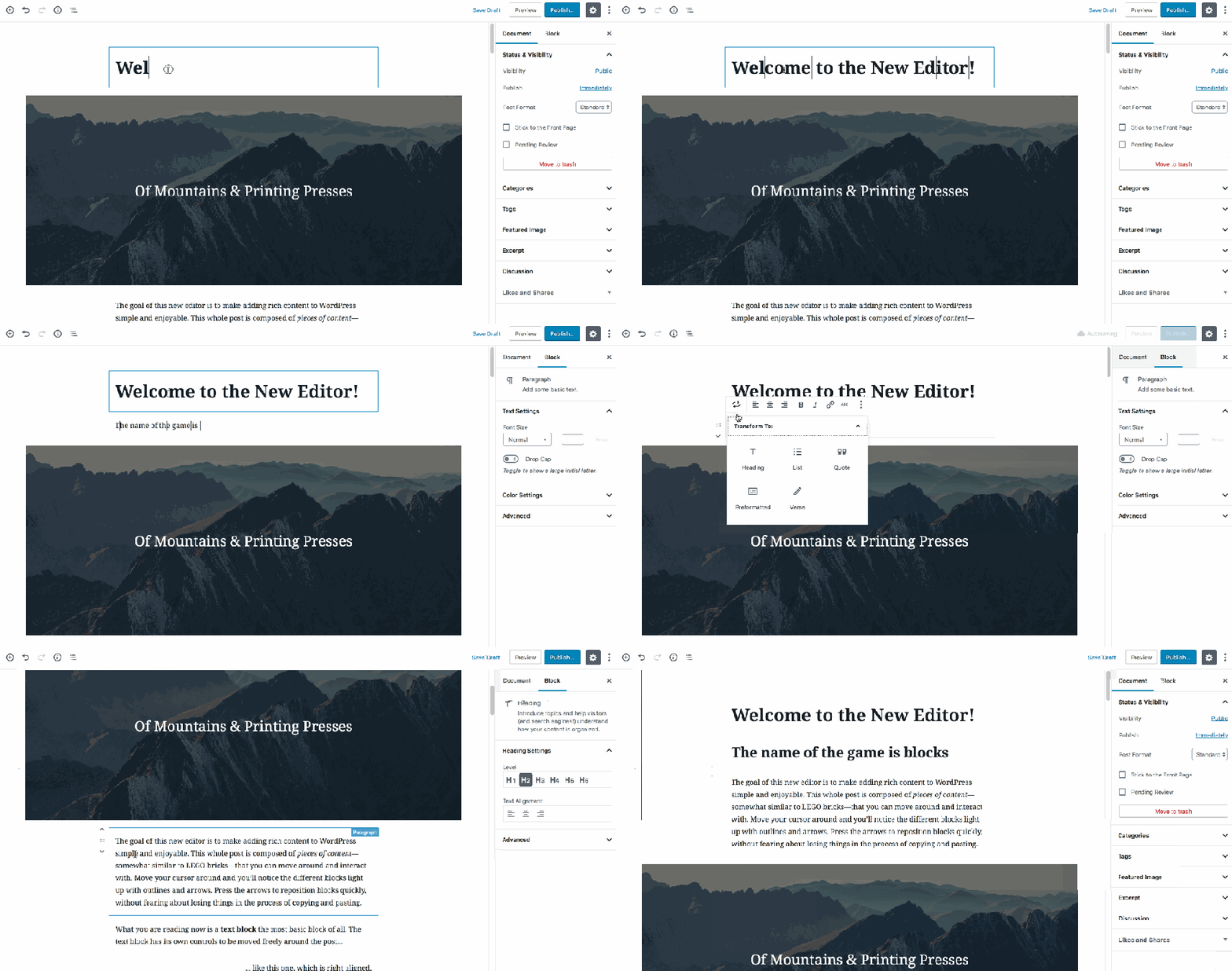
The WordPress Editor is a brand-new publishing experience. You can use it to create media-rich pages and posts and to control their layout with ease. Instead of worrying about the alignment and organization of text, quotes, and images, now every element on a post or page has its own block — and you can focus on creating.
Move, edit, and customize each block, and the editor will display visual elements the way they’ll look on your actual site, saving you the time you may have previously spent previewing and double-checking your content before clicking the Publish button.
How Does It Work?
Blocks
The WordPress Editor uses blocks to transform the way you create content: it turns a single document into a collection of discrete elements with explicit, easy-to-tweak structure.
The new editor brings with it a new, effortless page- and post-building experience. With blocks, you can quickly add and customize multiple media and visual elements that used to require shortcodes, custom HTML code, and embeds.
Adding a Block
There are many block types for you to choose from, which you’ll see organized by category and by most recent use. You can edit or move each block independently of other blocks, and individual blocks sometimes come with their own formatting settings for even greater control over layout and function.
 Adding blocks
Here are the ways to add a block.
Configuring a Block
Each block has its own settings. To find them, select a block: this will reveal a toolbar at the top of the block. You’ll also find additional settings in the sidebar to the right of the editor.
The settings at the top of the block usually include formatting options as well as the option to change the block type ([1] in screenshot below).
In the editor’s sidebar you can switch between settings for the current block ([2] in screenshot below) and settings for the whole document ([3] in screenshot below).
The Document Settings is where you can add tags and categories, choose a featured image, see and change the status of your post, and more — these are options that apply to the page or post as a whole.
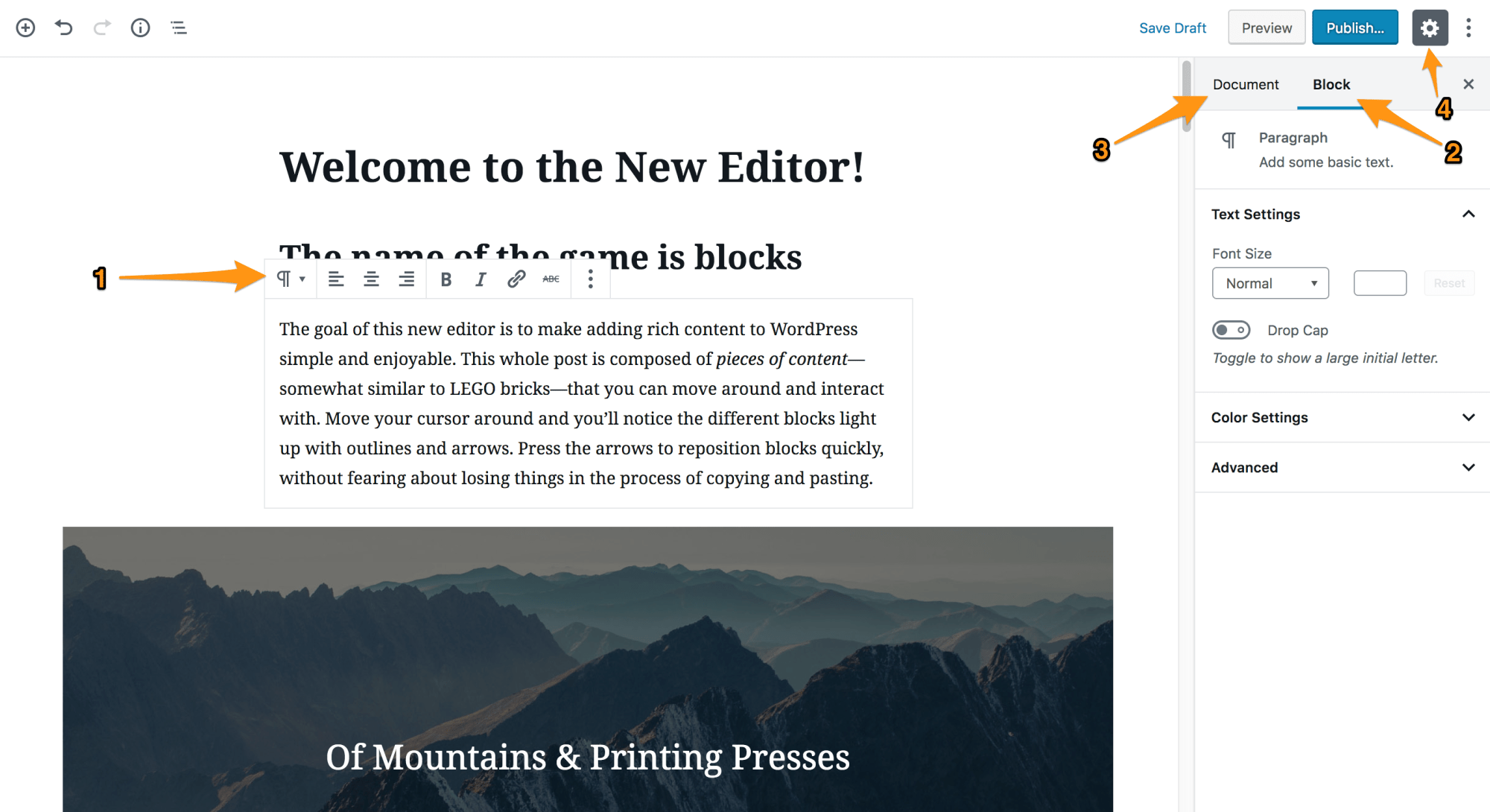 Locations of block and document settings
You can click the cog icon at the top right of the editor to show or hide the settings column ([4] in screenshot above).
What if you’d like to change a block type? No problem: you can transform each block to another similar or related block type. For example, change a paragraph to a heading, a list, or a quote.
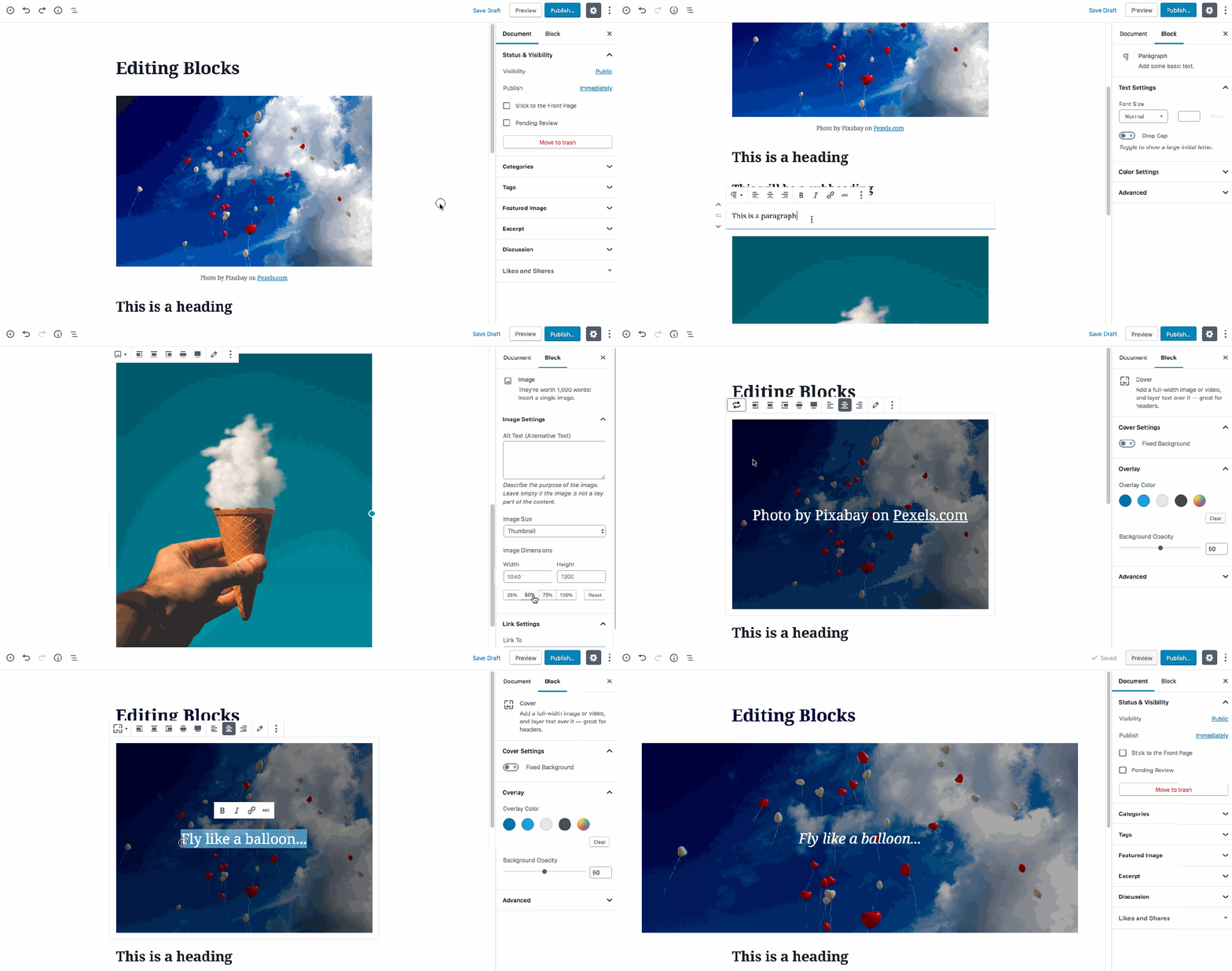 Changing and configuring blocks
Removing a Block
To remove a block, select the block and click the three dots right above it. Among the settings there you’ll see the option to remove that block.
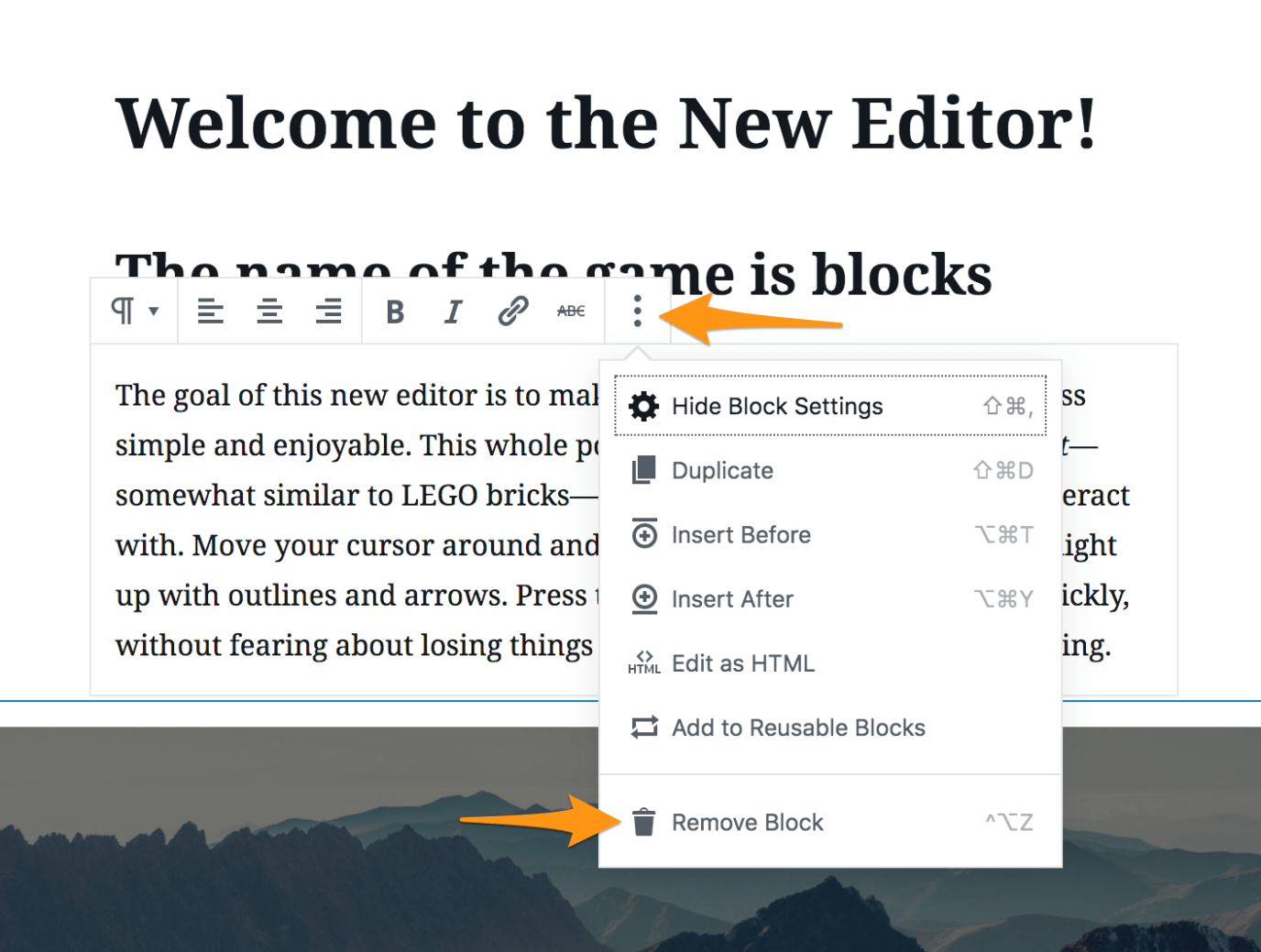 Remove a block
If you need specific help, contact our Support Team.
Feel free to click the thumbs up below to help many others in need of similar solutions, thank you and God bless!



