
How to Backup Your WordPress Website
Technology fails. All technology fails, someday. No one should therefore wait for that day to come and risk all the digital data in their connected world. Your website! If you backup your local computer, then chances are you have a plan for backing up your website. Well, a website is at least as vulnerable to threats as the computer is.
NB: Always back up your database regularly, and always before any upgrade of either themes, plugins, CMS versions, and other files.
Investing in regular backups is an important step to protect your website. If something unfortunate does happen, you won’t have to start from scratch. You simply restore from the latest, functioning backup.
What is a Website Backup Service?
A website backup is a copy of all of your website data. What the backup storage encompasses will depend upon your online backup provider as each dictate what is available for download including storage space provisioned. As a general rule of thumb, the more data that’s included in the data backup, the better.
Especially the case if your website runs on a content management system (CMS) like WordPress, where you’ll need all of your site’s files, content, media, and databases to get it up and running again.
Note: A WordPress website consists of the following:
- WordPress core installation
- Plugins
- Themes
- Images and files (content)
- JavaScript, PHP, and other code files
- Additional files and static web pages
How Often Should You Back Up Your Website?
Website backups should also be done on a regular basis, just like computer backups. That would either be daily or weekly backups, or as often as you update your website. For example, if you only publish a single blog post per week and that’s the only update you make to your site, then weekly backups will suffice. Generally, make updates every time your make any change to your website.
Why You Need to Back Up Your Site
Backing up your site is the only way to ensure you’re protected from losing all the work you’ve put into it. Losing a website can be stressful, with lost data and content comes clients and business: major consequences to deal with even if you get back online.
If you have to build a new website from scratch, you lose the time and cost involved in creating an all-new website. That’s a daunting task. And if your website had a lot of pages or an active blog, you may be unable to recreate some of the content you worked hard on—losing a portion of that website for good.
For a business website, then you’re losing revenue for the entire time your site is offline. For an ecommerce business, the losses could be huge. For a service provider, a broken website at best makes you look unprofessional, and could lose you potential clients that can’t find your business while it’s down.
On top of the consequences in time and money, you have to deal with all the stress, frustration, and embarrassment of solving an avoidable emergency. The emotional cost of losing your website without a backup is difficult to quantify.
How Website Backup Services Work
Website backup services ensure backing up your website requires very little work, many of them by making the process automatic.
Websites have a lot of moving parts and a variety of files required just for your website to load the right way. If you forget to back up a crucial file and your website might not load properly or at all. If you’ve ever played around with the code of your own website, then you’re probably familiar with how changing a single line of code can bring your website offline. It hurts!
When you use an online backup service, you don’t have to worry about individually backing up each website element and file yourself. The service does it automatically in the background. This helps to ensure that every single file is included in the backup, and you can restore your site with a simple click if the need arises.
You choose your online website backup service, configure it to your website, and choose the frequency of backups. The application will run in the background, silently backing up your website’s data to your preferred guidelines.
Benefits of Using an Online Backup Service
An online backup service makes your life easier and your website safer in a few main ways.
- Backups Are Graceful
When you use a service that creates automatic backups. You can trust that all new changes and updates to your website are being quietly backed up, while you focus on running your website.
In contrast, backing your website up manually to a local disk need someone who technically understands what is to be backed up. Most people would forget to do a backup as scheduled.
- Enhanced Security Protocols
If you’re manually backing up your site and using a basic storage solution, security won’t be as high as those a cloud backup solution provides. An HDD backup can open your files up to risks like data corruption, theft if it’s a portable drive, storage malfunction, and physical damage.
Online backup services not only have multiple layers of security to protect your files, but they’ll be stored on redundant servers and or RAID storage systems.
- Speedy Site Recovery
One of the biggest benefits of using an online backup service is being able to restore your site to a previous version in an instant. With quick website recovery and data restoration times it’ll be like your site never took any damage in the first place.
A lot of online backup services will also offer technical assistance for restoring your site or even have one-click recovery options easing the technical process of restoring their sites themselves.
How to Back Up Your Website
Now that you’re knowledgeable on why need a backup for your website, you need to know the how. The details of how to back up your website will depend on the service. Most popular back up methods include:
How to Back Up Your Website Using cPanel
Many web hosting plans come with cPanel. If you don’t want to pay for an online service, cPanel gives you a way to manually create backups—follow these steps on a regular basis. Consider scheduling a calendar alert so you actually remember.
- Log into your cPanel account.
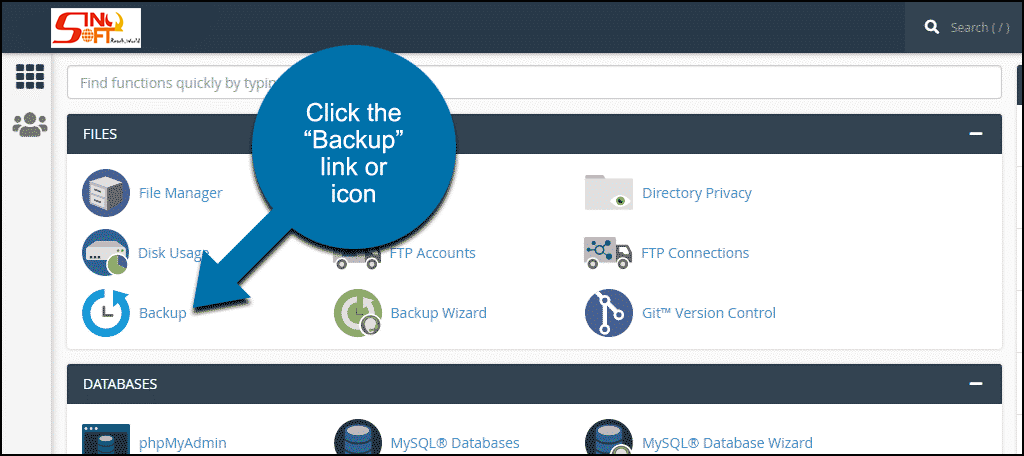
- Scroll down to the Files section, and select Backup.
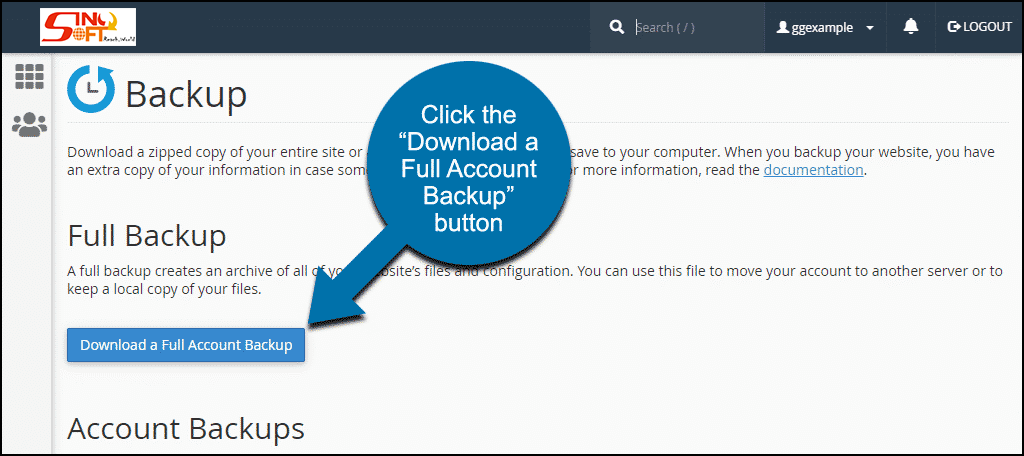
- Click on the button that says “Download a Full Account Backup”. You also have options to backup specific sections of your website, if you want a faster process as less files are backed up.
- Choose the destination where you want your backup to go, and fill in your email address.
- When your backup is ready, you’ll receive an email and see your backup listed in the “Backups Available for Download” section.
How to Back Up Your Website with CodeGuard
To start,buy CodeGuard CodeGuard helps with:
- Daily automatic website backups
- Unlimited files and database
- One-click restores
- Malware monitoring
- Automatic WordPress updates
- File change monitoring
- Staging of restores
- Email backup
- Full automation
You can log into your CodeGuard account at any time to check on the status of the most recent backup, and restore your site if needed.
How to Back Up Your WordPress Website Using a Plugin
WordPress, the most popular CMS, has a plethora of plugins for all the needs of any website imaginable. For something as important as website backups, you’ve got a number of plugin options. The initial steps for using these plugins will essentially be the same:
- Decide what plugin you want to use.
- When logged into WordPress, select “Add New” in the Plugins menu.
- Search for your backup plugin.
- Click Install.
- Click Activate.
For some plugins that may be enough for them to start automatically creating backups, while others may have additional setup instructions. Look for instructions provided by the plugin you chose to figure out any additional steps to take to get started.
"A Backup a Day (or Week) Keeps Catastrophe Away"
Whatever method you choose, the important thing is that you take the step of starting to create regular backups for your website. Choosing an option that automates the process means less work for you, and less risk of forgetting to get it done.
Interestingly, you’ll never actually need to use the backups you create. But more likely, you’ll be immensely relieved that they’re there the day things go south.
Choosing the Best Website Backup Service
When you’re looking for a solid website backup service there are certain features, you’ll want to keep an eye out for. The worst thing you would do is choose a low-quality online backup service.
Key features you’ll want to keep an eye out for when choosing a backup service:
- Off-Site Backups
You want your backups to be protected from hackers and hardware failure. This means that your backups need to be stored in an off-site protected location. Look for an online backup service that offers off-site backups as part of their service offering.
- Automated Backups
If you have to create your backups yourself, then you’ll probably never get around to it.
With automated backups, you don’t have to think twice about backing up your website. Just sign up for a service, create a backup schedule, and the rest is taken care of for you.
Automation is one of the most important aspects of an online backup service or offered as a plan on premium plugins. Without automation, the task probably won’t get done.
- Redundant Backups
Another very important feature of your online backup service is redundant backups. This is where your website files and folders will be stored in multiple server locations.
This ensures that a single event won’t bring down your backups or storage, and you have multiple lines of defense, instead of a single point of failure.
CodeGuard is equipped with features like:
- Daily automatic backups (or whatever frequency you prefer)
- One-click restore of your entire website, or a single file that’s been corrupted
- Email alerts for any unauthorized changes that are made to your website
- 24/7 website monitoring and scheduled scans
- The ability to backup multiple different websites in a single storage space
- Download a zip version of your entire site for manual backups (if you want even more stored versions of your site)
It immediately integrates with your existing web hosting plan, so configuration is a breeze. Just choose your backup plan, select the websites you want to save, and this tool will do the rest.



