
Categories
Tag Cloud
How to Clone WordPress Website Using Softaculous
This guide will help you how to Clone a Wordpress installation using Softaculous. You can clone an installation to test the upgrades or the changes before applying it to the main installations.
1) Login to Panel
- Go to your panel (e.g. cPanel’s url will be https://domain.com:2083) and login with your details.
- There click on the Softaculous Icon or Link.
- The Softaculous Enduser Panel will be displayed.
- Go to all installations page.

2) Choose the installation you want to Clone
- Click on the Clone icon next to the installation you wish to clone.
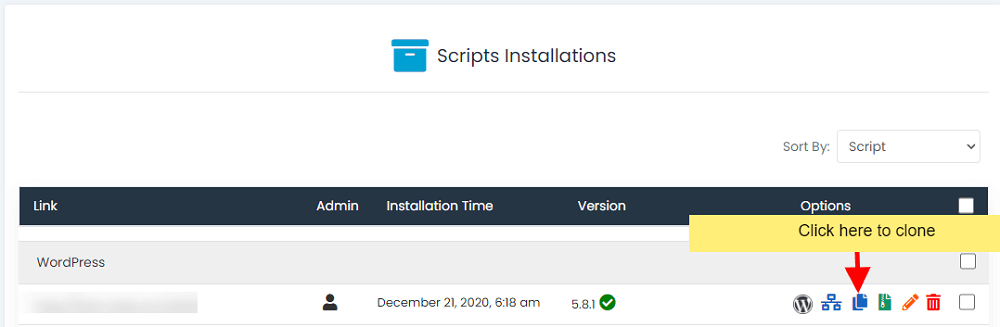
- The Clone page will appear with the current installation details and a form to fill in the details for the cloned installation.
3) Fill in the Clone Installation Details
- Fill in the clone installation details i.e. Choose domain, Directory, Database name, etc
- Click on the Clone Installation button and this should do the trick. The time taken may vary in accordance to size of your installation, So please be patient.
- That’s it !! You can now use this cloned installation to test the updates or any other changes you may want to test.
NOTE : You will receive the clone installation details via email (if the emails are enabled).
NOTE : The admin/user account login details will be the same as the source installation.

This guide will help you how to Clone a Wordpress installation using Softaculous. You can clone an installation to test the upgrades or the changes before applying it to the main installations.
1) Login to Panel
- Go to your panel (e.g. cPanel’s url will be https://domain.com:2083) and login with your details.
- There click on the Softaculous Icon or Link.
- The Softaculous Enduser Panel will be displayed.
- Go to all installations page.
2) Choose the installation you want to Clone
- Click on the Clone icon next to the installation you wish to clone.
- The Clone page will appear with the current installation details and a form to fill in the details for the cloned installation.
3) Fill in the Clone Installation Details
- Fill in the clone installation details i.e. Choose domain, Directory, Database name, etc
- Click on the Clone Installation button and this should do the trick. The time taken may vary in accordance to size of your installation, So please be patient.
- That’s it !! You can now use this cloned installation to test the updates or any other changes you may want to test.
NOTE : You will receive the clone installation details via email (if the emails are enabled).
NOTE : The admin/user account login details will be the same as the source installation.



