
Clear browser cache in Safari
Clearing a web browser’s cache can correct problems you may have using a web browser Sino Soft recommends that you perform this before to see new changes. The instructions below demonstrate how to clear the cache using Safari.
Step 1:
Click on the Safari drop-down menu and select Preferences.
Step 2 :
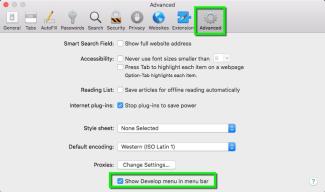
Click the Advanced tab. Select the Show Develop menu in menu bar checkbox and close the Preferences window.
Step 3:
Select the Develop drop-down menu. Click Empty Cache.
Step 4:
Note: You may want to also clear your browser history. Select the History drop-down, then Clear History.
Delete history, cache, and cookies
-
Go to Settings > Safari.
-
Tap Clear History and Website Data.

Clearing your history, cookies, and browsing data from Safari won't change your AutoFill information.
When there's no history or website data to clear, the button to clear it turns gray. The button might also be gray if you have web content restrictions set up under Content & Privacy Restrictions in Screen Time.
To visit sites without leaving a history, turn Private Browsing on.
Clear cookies and cache, but keep your history
-
Go to Settings > Safari > Advanced > Website Data.
-
Tap Remove All Website Data.
When there's no website data to clear, the button to clear it turns gray. The button might also be gray if you have web content restrictions set up under Content & Privacy Restrictions in Screen Time.
Delete a website from your history
-
Open the Safari app.
-
Tap the Show Bookmarks button
 , then tap the History button
 .
. -
Tap the Edit button, then select the website or websites that you want to delete from your history.
-
Tap the Delete button.
Block cookies
A cookie is a piece of data that a site puts on your device so that site can remember you when you visit again.
To block cookies:
-
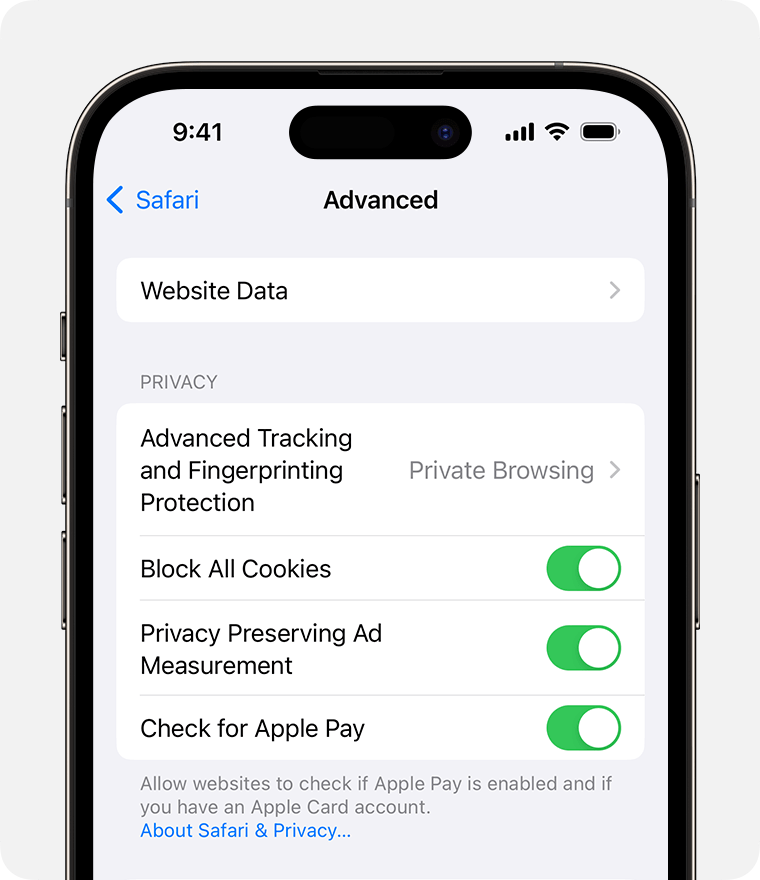
Go to Settings > Safari > Advanced.
-
Turn on Block All Cookies.
If you block cookies, some web pages might not work. Here are some examples:
-
You will likely not be able to sign in to a site even when using your correct username and password.
-
You might see a message that cookies are required or that your browser's cookies are off.
-
Some features on a site might not work.
Use content blockers
Content blockers are third-party apps and extensions that let Safari block cookies, images, resources, pop-ups, and other content.
To get a content blocker:
-
Download a content blocking app from the App Store.
-
Tap Settings > Safari > Extensions.
-
Tap to turn on a listed content blocker.



