
Categories
Tag Cloud
How to create a coupon code in woocommerce
How to add a coupon code in WooCommerce
WooCommerce is a free, open source WordPress plugin you can add to an existing site you manage through WordPress. Once you install the plugin, here's how to set it up so you can start creating custom coupon codes. First, the quick version.
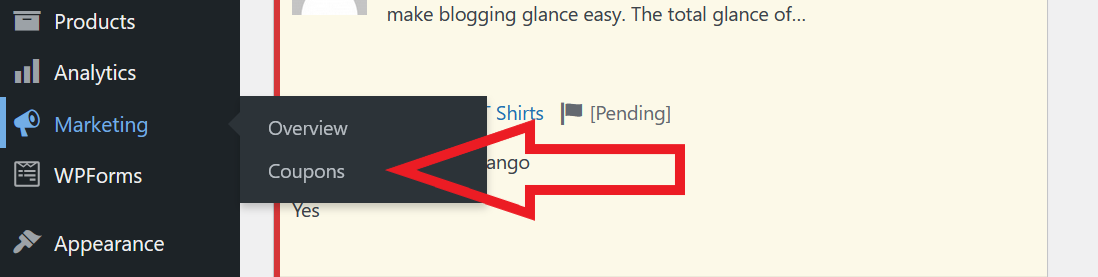
- Click Marketing> Coupons.
- Click Add Coupon.
- Fill out the details, including the code itself.
- Choose the visibility and publish dates.
- Click Publish.
Setting general, usage restriction, and usage limit details
As you're creating your coupon, you'll see three distinct usage detail categories: General, Usage restriction, and Usage limits.
General
The first field you'll see is the General one, where you'll set the fundamental elements of the coupon and select from three types of discounts:
- Percentage discount: A set percentage off the user's whole cart
- Fixed cart discount: A set dollar amount off the user's whole cart
- Fixed product discount: A set dollar amount off individual products rather than the cart
In this field, you can also apply free shipping and a coupon expiration date.
Usage restriction
As the label implies, this is where you'll enter any restrictions for the coupon. Here, you can require minimum purchases, max out the applicable purchase amount, prevent the coupon from combining with other discounts or applying to sale items, include or exclude specific products or categories, or make it available only to specific email accounts.
Usage limits
The final piece of the coupon puzzle is usage limits. On this tab, you can put a hard stop on the total number of times the discount can be applied and the number of times any individual user can apply it.
Hope this was helpful, hit thumbs up below to help someone else. God bless you in Christ Jesus!
How to add a coupon code in WooCommerce
WooCommerce is a free, open source WordPress plugin you can add to an existing site you manage through WordPress. Once you install the plugin, here's how to set it up so you can start creating custom coupon codes. First, the quick version.
- Click Marketing> Coupons.
- Click Add Coupon.
- Fill out the details, including the code itself.
- Choose the visibility and publish dates.
- Click Publish.
Setting general, usage restriction, and usage limit details
As you're creating your coupon, you'll see three distinct usage detail categories: General, Usage restriction, and Usage limits.
General
The first field you'll see is the General one, where you'll set the fundamental elements of the coupon and select from three types of discounts:
- Percentage discount: A set percentage off the user's whole cart
- Fixed cart discount: A set dollar amount off the user's whole cart
- Fixed product discount: A set dollar amount off individual products rather than the cart
In this field, you can also apply free shipping and a coupon expiration date.
Usage restriction
As the label implies, this is where you'll enter any restrictions for the coupon. Here, you can require minimum purchases, max out the applicable purchase amount, prevent the coupon from combining with other discounts or applying to sale items, include or exclude specific products or categories, or make it available only to specific email accounts.
Usage limits
The final piece of the coupon puzzle is usage limits. On this tab, you can put a hard stop on the total number of times the discount can be applied and the number of times any individual user can apply it.
Hope this was helpful, hit thumbs up below to help someone else. God bless you in Christ Jesus!



