
Why it is important to update your WordPress site
To avoid any website-related problem, it is important to constantly update plugins, themes, and the WordPress version. Updates to the latest version of WordPress will help your site be safe and bug-free, ensuring compatibility and a pleasant user experience.
Normally the website will function as normal but when trying to make amendments you might encounter incompatibility issues, also as time goes by the php server, plugins, themes, and the WordPress version gets deprecated and vulnerable to security threats. The update helps in security patches to prevent site from being hacked. It should be noted that, when you update your WordPress CMS, you need also to update the website theme (delete all unused themes) and update all plugins (also delete those not in use). WordPress, themes, and plugins not updated provide an attack surface for exploitation of vulnerabilities and also ensures that there is a level of compatibility among them all, bringing about a better user experience.
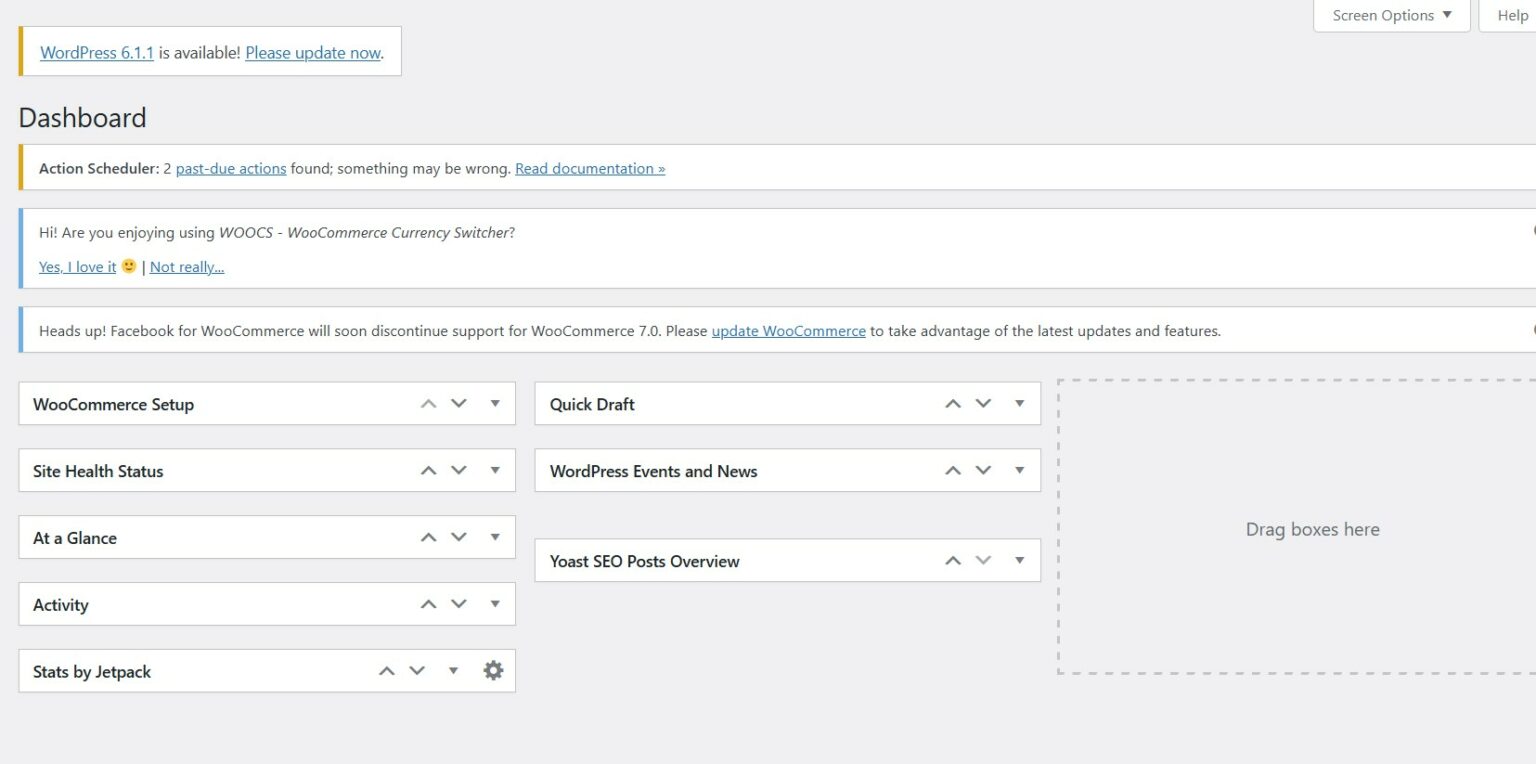
As depicted in the image below, you can know when WordPress needs to be updated from the Dashboard where a notification of a new release is placed for your action.
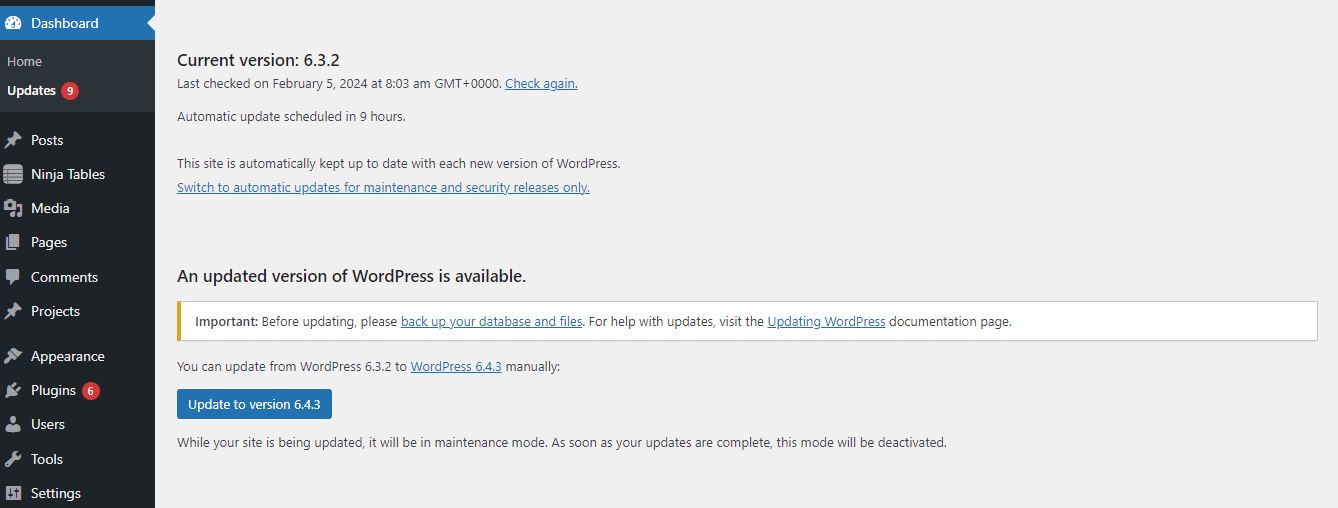
Before making the update:
- Ensure you make a full backup of your website. Sometimes, an update can mess up the whole website and one needs a fallback plan if such an unfortunate incident happens.
- Deactivate all plugins as they are known to create a huge mess during updates due to incompatibility with the newer version.
Steps Required to Update Your WordPress Website in 2024
1. Make a Full Backup of Your Website
The full backup is essential when you update WordPress. It helps you keep your information intact in case something goes wrong during or after the update. In this way, you will create a copy of all the files, content, and images existing on your website, which you can refer to in case of need.Though sometimes, the update can go smoothly, it's better to be safe than sorry.
Two aspects need to be backed up before the WordPress update process:
- Database – includes the current information on your website. You can do this either with the help of plugins such as WP Database Backup or with the help of phpMyAdmin, a free tool that can be accessed directly through the web address or from CPanel- if provided by the hosting provider.
- Themes and plugins – for a quick backup, you can confidently use Synthesis or do it manually via an FTP transfer.
2. Disable the Cache on the WordPress Website
Before doing any WordPress update, it is necessary to disable any plugin that stores cache data, be it W3 Total Cache, Litespeed, Super Cache, or Quick Cache.
This is to ensure that you will not have pages kept in the cache memory and that the respective plugin will not affect the WordPress update process.
3. Update the Active Theme and Plugins
Although rare, there are situations when a new version of WordPress can bring changes that affect the functionality of some plugins or themes.
As a rule, theme and plugin developers are very attentive and responsive to the changes and updates that WordPress makes, so they release the necessary updates together with the platform to be compatible.
Suppose you update WordPress before updating plugins and themes. In that case, have the unwanted and dreaded White Screen of Death (WSOD), with that empty page of information indicating the existence of errors.
NB: So, before updating WordPress, ensure your theme and plugins are up to date.
However, instead of updating all your plugins and themes simultaneously, it is recommended to do them one by one, each separately. In this way, in case of an error, you will be able to identify the source quickly, and you will be able to request clarifications and support from either WordPress or the respective developer.
4. Update WordPress Itself
After all three essential steps, it’s time to take the big step: update WordPress. And this by simply pressing the button with the same name. WordPress will then take care of the rest.
5. Re-enable the Cache Plugin
Once the WordPress update process is complete, reactivate the cache plugin to ensure your site runs as fast as before.
Finally, review the whole website and check for errors and rectify where and if necessary.



