
How To Clear Browser Cache and History - Chrome, Mozilla and Safari
While the efficient use of caching can help speed up a website, the cache might also cause problems with accessing a site. Therefore, it is essential to know how to clear a browser cache and history of all the websites visited. With this in mind, we will explain what a browser cache is and how to clear it using three major browsers. We will also dive deeper into the importance of clearing your website cache.
A cache itself saves files like code, images, and fonts when you visit a website. It does this to avoid repeatedly downloading the same files when you revisit the site. Caching website data allows the browser to load sites faster and helps fix errors like loading or formatting issues. These problems typically happen due to a discrepancy between newly updated site data and the cached data available on your device.
Website owners can also use the caching mechanism to boost their website performance and improve user satisfaction. For example, if you run a WordPress website, you can use a caching plugin to create a static version of your site to show users when they revisit it. To help save time and reduce website maintenance costs, use free WordPress caching.
Cookies also save website data, but they are bits of information about user choices and characteristics. When you delete cookies, you reduce the number of sites tracking your data, clear saved passwords, and decrease the amount of personalized content you see. In addition to cache and cookies, you can also clear history. The browsing history saves a list of your visited web pages. To clear history means to prevent people from viewing the sites you visited.
Therefore, when you clear browsing data like history, cache, and cookies, you improve web security and site performance.
How to Clear Browser Cache in Different Browsers
All browsers provide users with a way to clear the cache and other site data, but the methods may slightly differ.
In this section, we will walk you through the steps to clear a browser cache in three popular browsers: Google Chrome, Mozilla Firefox, and Safari.
A. Clearing the Browser Cache in Google Chrome
- Open Chrome on your computer and click the vertical ellipsis at the upper right corner of the screen.
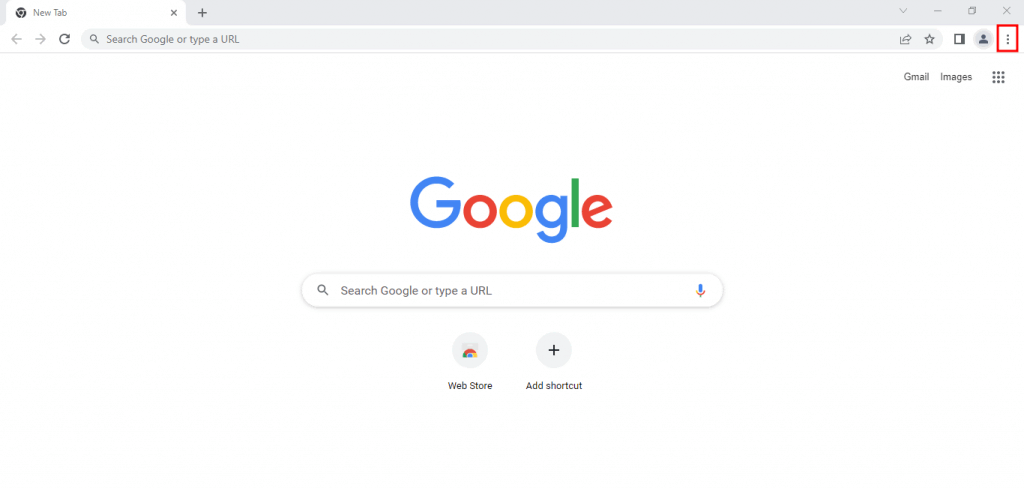
Google Chrome browser starting page with the vertical ellipsis symbol at the top right of the screen highlighted.
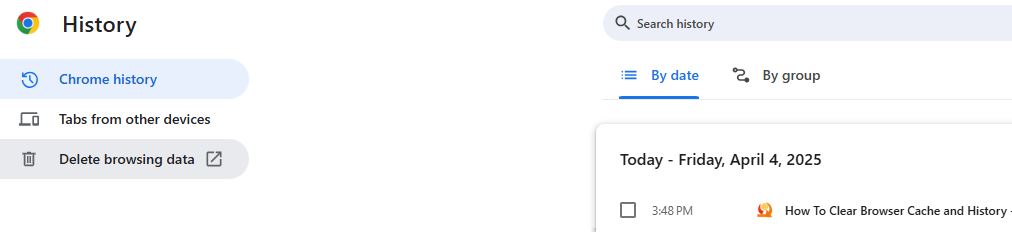
- Navigate to the History menu, click History

- Click Delete browsing data
- Once the Clear browsing data window appears, pick a time frame from the drop-down menu. Note that an All time option clears your entire browsing history, cookies, and cached files.
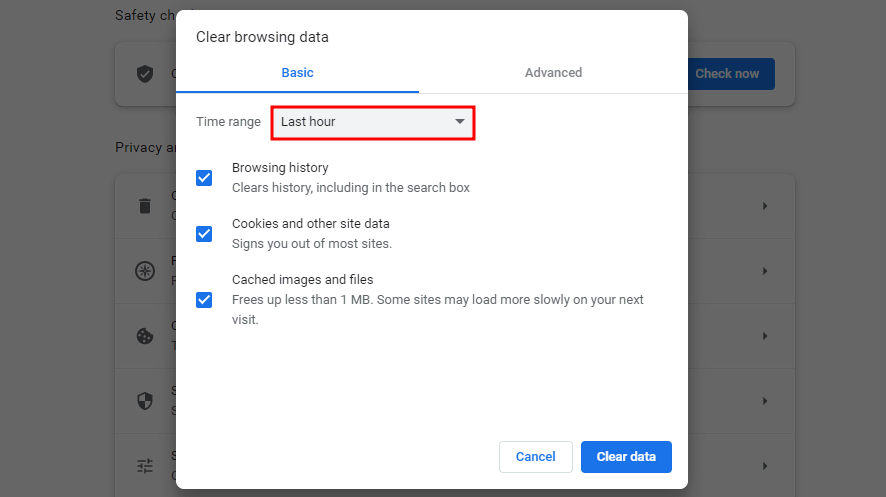
Google Chrome browser's Clear browsing data pop-up window with the time-range drop-down menu highlighted.
- Check or uncheck boxes based on what you want to clear. Options include Browsing history, Cookies and other site data, and Cached images and files. In the following example, we only checked the box to remove all cached images and files.
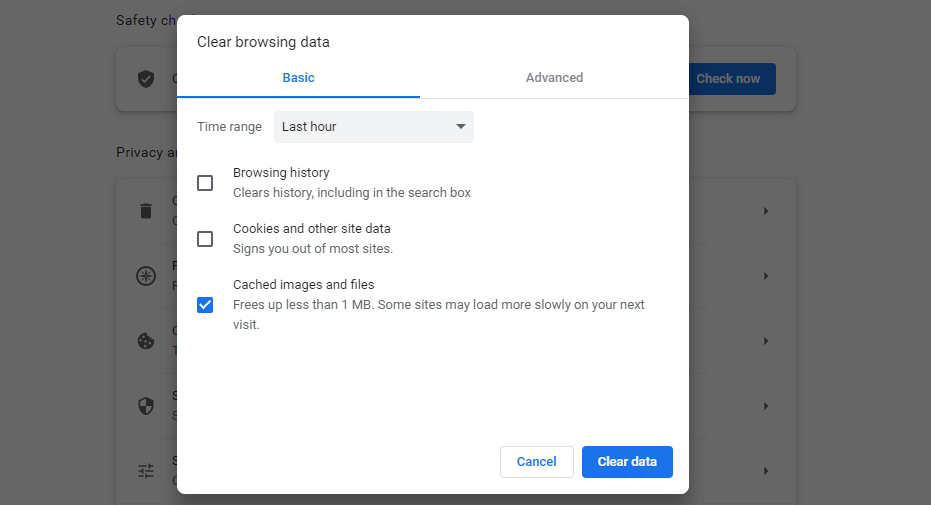
Google Chrome browser's Clear browsing data pop-up window with only the "Cached images and files" box checked.
- Click Clear data.

Google Chrome browser's Clear browsing data pop-up window with the "Cached images and files" checked and the "Clear data" button highlighted.
B. Clearing the Browser Cache in Mozilla Firefox
- Open Mozilla Firefox on your computer and click the three horizontal lines at the upper right corner of the screen.

Mozilla Firefox browser starting page with the three horizontal lines symbol at the top right of the screen highlighted.
- Select Settings.
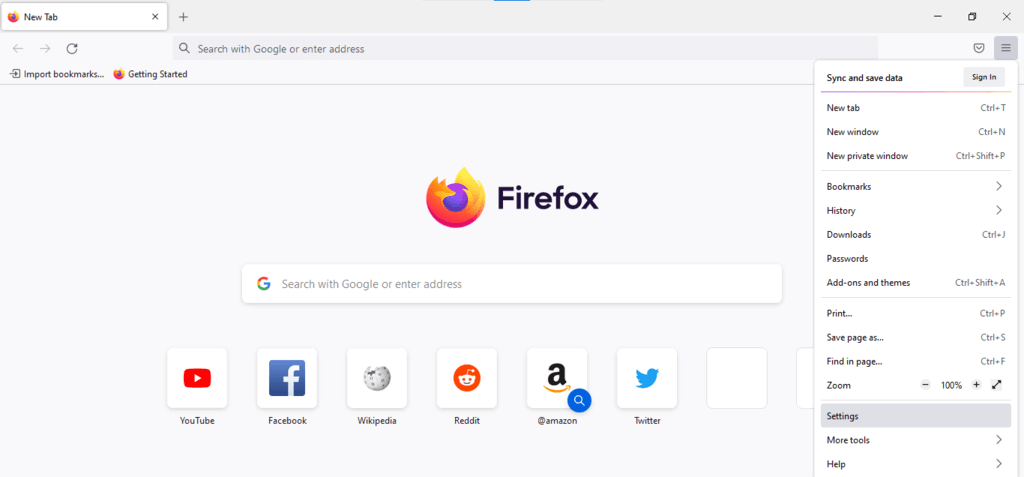
Mozilla Firefox browser's application drop-down menu opened with the "Settings" option highlighted.
- Click on the Privacy & Security panel.
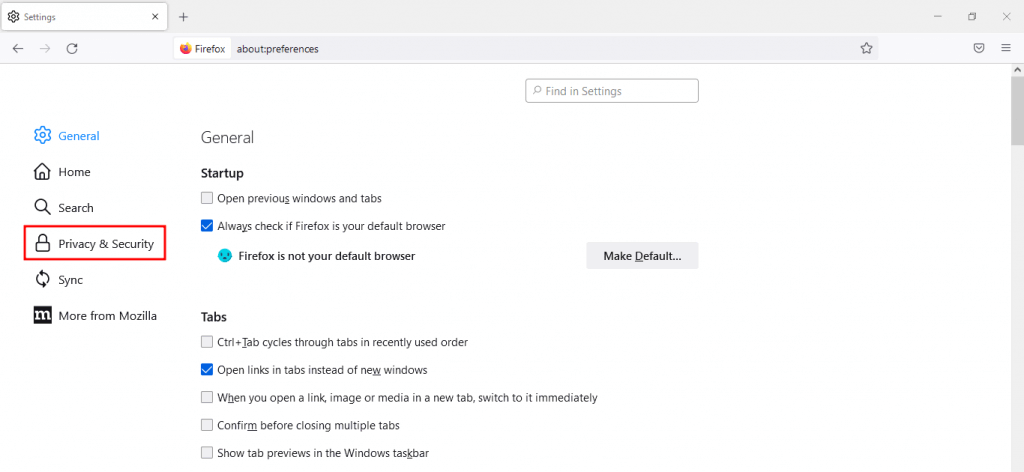
The General page of Mozilla Firefox browser settings with the Privacy & Security tab highlighted.
- Scroll down to the Cookies and Site Data section and click Clear Data…
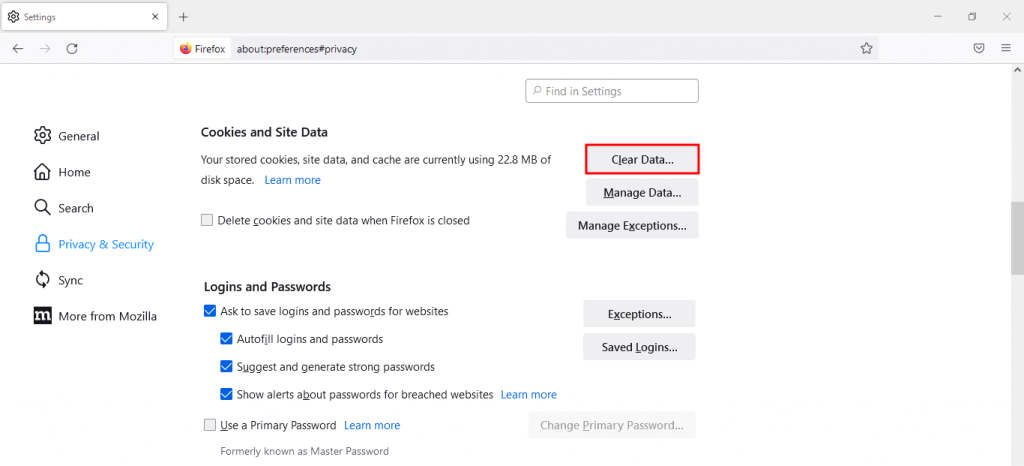
The Privacy & Security page of Mozilla Firefox browser settings with the "Clear Data" button highlighted.
- Check both the Cookies and Site Data and Cached Web Content boxes to clear both, or choose one to clear only the cache or cookies, as shown below.
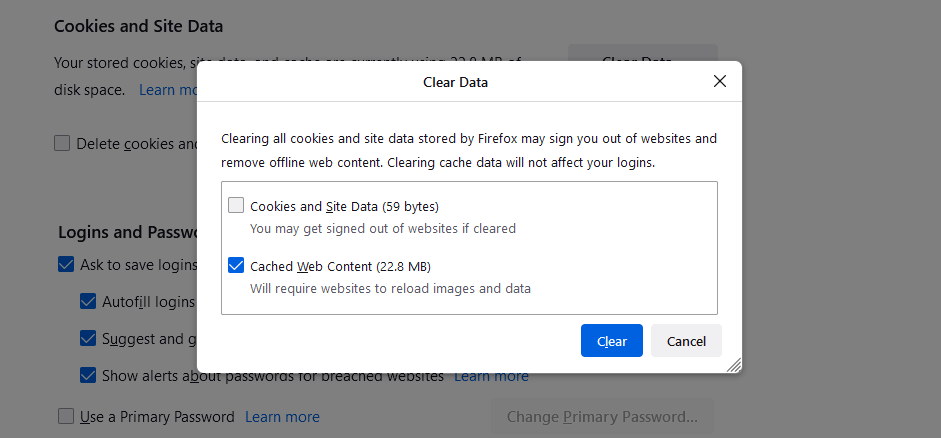
Clear Data window on the Mozilla Firefox browser settings with the "Cookies and Site Data" box unchecked and the "Cached Web Content" box checked.
- Click the Clear button to delete the Firefox cache.
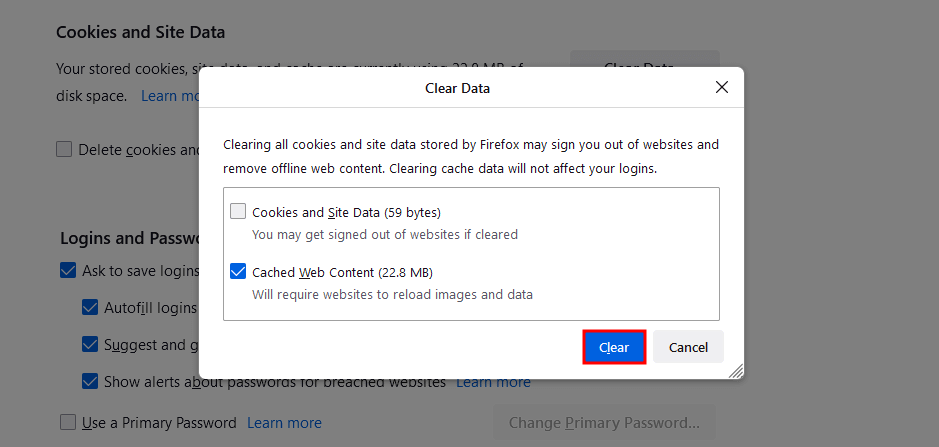
Clear Data window on the Mozilla Firefox browser settings with the "Cached Web Content" box checked and the "Clear" button highlighted.
C. Clearing the Browser Cache in Safari
- Click the Safari menu tab from the bar on top of the screen and select Preferences…
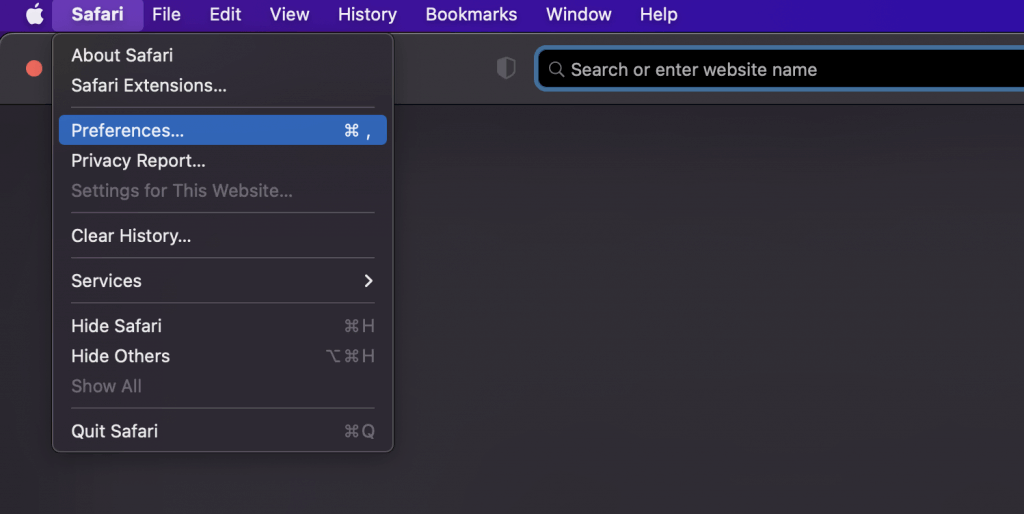
Safari browser tab drop-down menu opened with the "Preferences" option highlighted.
- Once the pop-up window appears, click on Advanced.
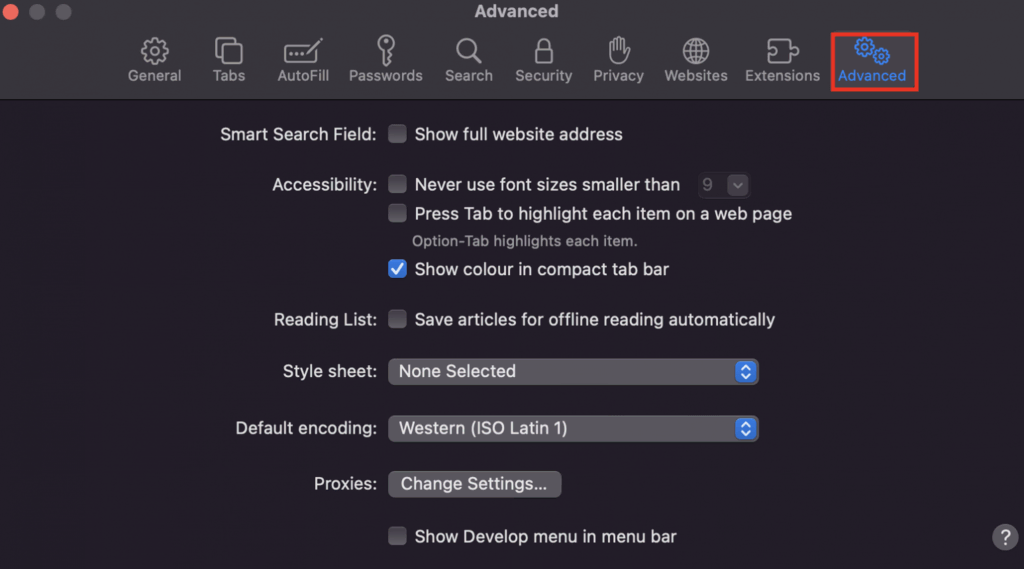
Advanced page of Safari browser's Preferences pop-up window with the Advanced tab highlighted.
- Check the Show Develop menu in menu bar box.
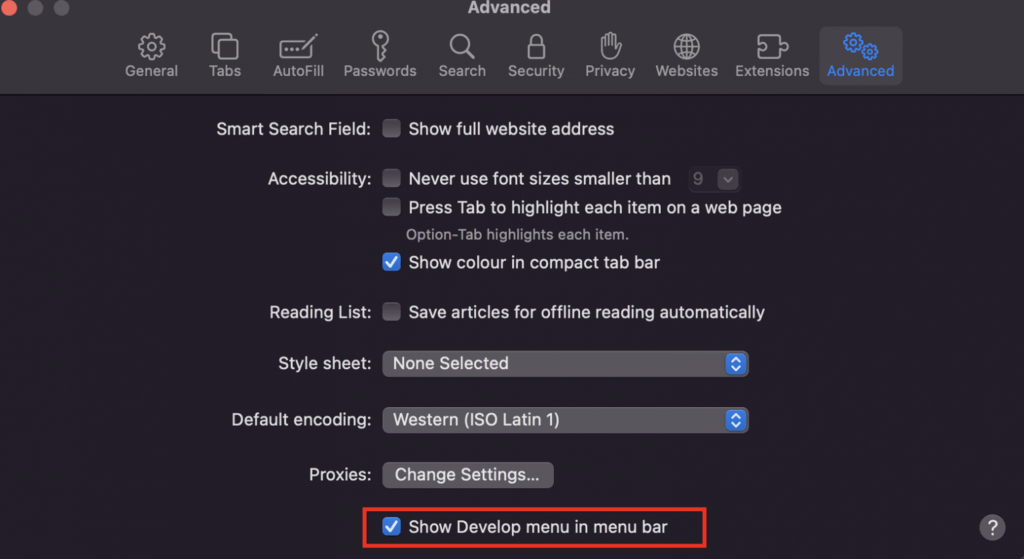
Advanced page of Safari browser's Preferences pop-up window with the "Show Develop menu in menu bar" writing and checked box highlighted.
- Click on the Develop tab on the Safari menu bar at the top of the screen and select Empty Caches.
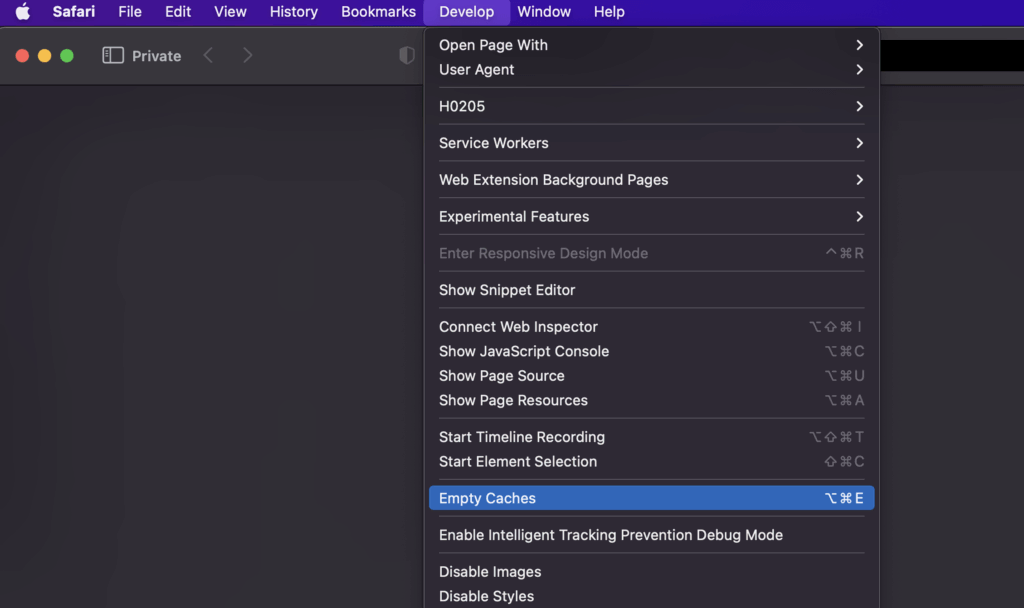
Develop tab drop-down menu opened with the "Empty Caches" option highlighted.
Conclusion
Caching allows the browser to save some temporary Internet files upon a user’s first visit to a specific site. As a result, the page loads faster the next time the user accesses the same website.
Clearing your browser cache can also fix loading or formatting errors, which may occur when there is a difference between newly updated site data and cached data on the visitor’s device. In addition, clearing other site data like cookies and history can help improve web security as it prevents others from using your login info, seeing the sites you visited, and viewing the files you downloaded.
Every browser provides the option to clear cache and other site data in its settings menu, but ways to do so may differ slightly across browsers. Make sure to follow the correct steps according to the chosen browser.
How to Clear Cache FAQ
What Is Cached Data?
The cache is a temporary storage location in a device. Cached data is the collection of site files and scripts saved within the cache. Whenever you visit a website for the first time, the browser sends a request to the corresponding server and saves the site files as cached data.
Is Clearing Cache Safe?
Yes, it is. The cache only stores non-essential browsing data, which won’t affect the browser’s functionality negatively. Clearing it will only free storage space and make sites load slower the first time you visit them since the browser can’t retrieve local resources.
How Often Should You Clear Cache?
It depends on how often and how long you browse the Internet. If daily and a lot, it’s better to clear your cache after each browsing session or every 24 hours. If you use it less often, clearing the cache every month or two will be enough.
You can also read: How to Clear Cache in cPanel
Credits: Hostinger



