
How to manually clone a website without Softaculous
Website cloning refers to as the process of creating a replica of an existing website, or simply put, copying a website or its design and associated elements.
Th following are steps involved in website cloning:
- Login to you Cpanel Account
Put your credentials appropriately as provided for by your hosting company.
2. Search for MySQL® Database Wizard - Click on it and create a new database.
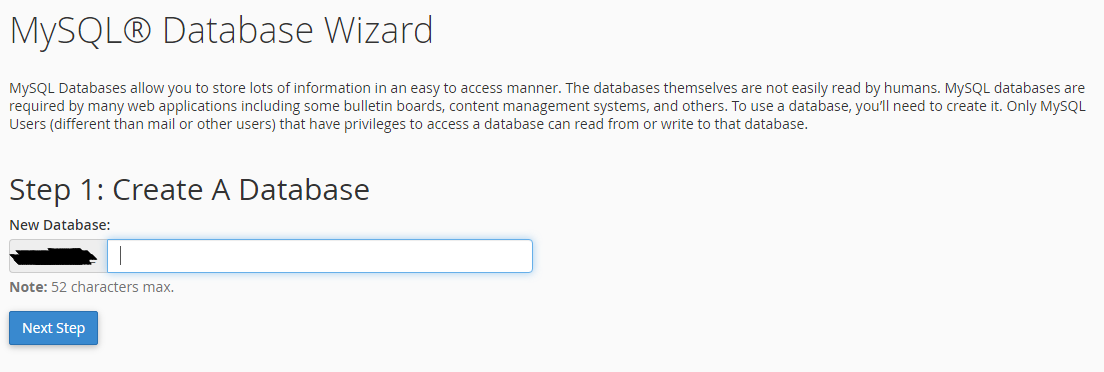
Make sure the database name is correct and copy it and paste it in a safe location as it will be used in the several steps.
3. Create Database Users:
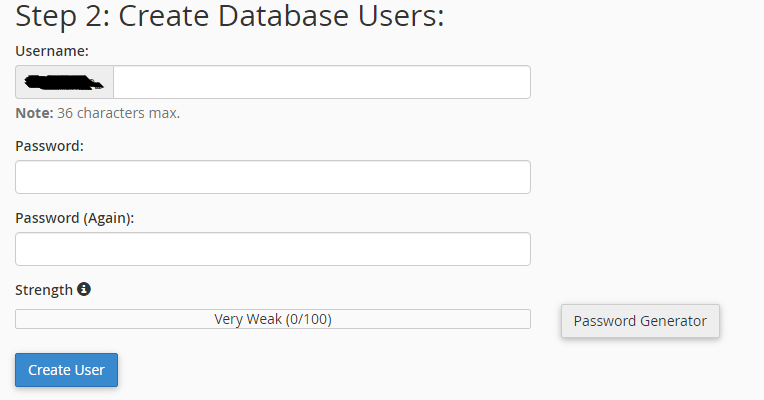
Take note of the username, password before clicking on Create User.
Password Generator is an important tool as it ensures your password cannot be easily guessed by anyone or configured by unauthorized users.
Password is only known by you.
4. Add user to the database and assign all the privileges by clicking on blank checkbox. Please ensure that the user and the database names is the correct as you earlier created.
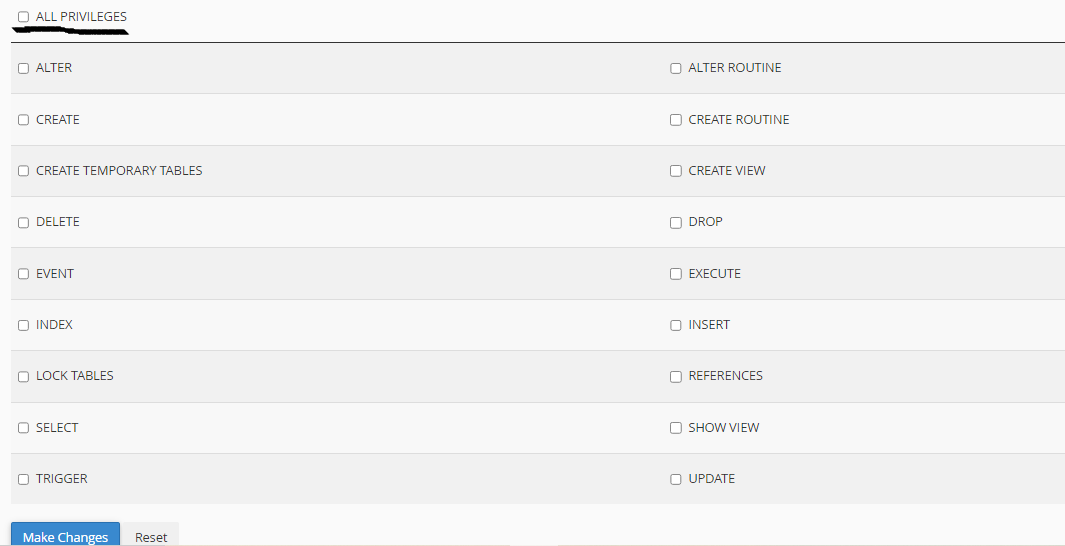
Once all the privileges are assigned, click on the Make Changes buttonso that the changes to be effected.
5. Return to MySQL® Databases and ensure all the privileges are assigned to the database as done on above steps.

6. Under Databases in Cpanel Dashboard, click on the phpMyAdmin.
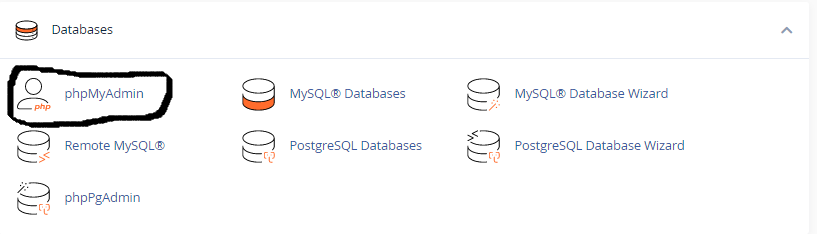
7. Once you click on phpMyAdmin, select the database name with the current website files being copied. Click operations as marked in black to start copying the website files in the new database you created earlier.
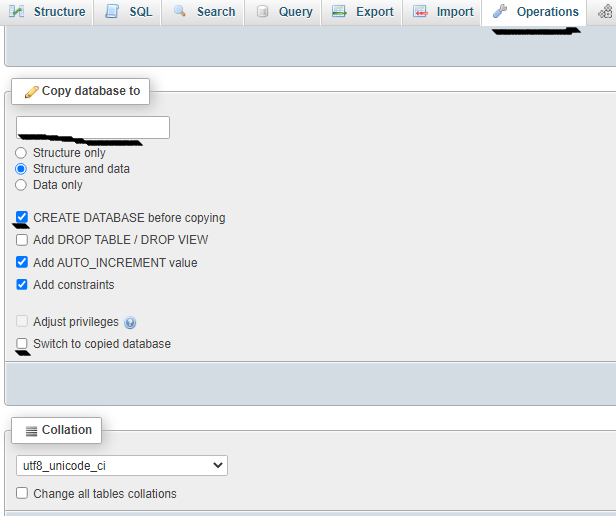
Please note you should use the new database name you created earlier under copy database to.
You should also uncheck the create database before copying as you the database has already been created earlier.
Check the switch to copied database as highlighted with black mark.
Click Go at the right corner of phpMyAdmin dashboard to start copying the database files.
Patiently and keenly wait until copying of files is done followed with a success message.
8. Open the File Manager in Cpanel and create a new folder in public html to copy the website files in it.
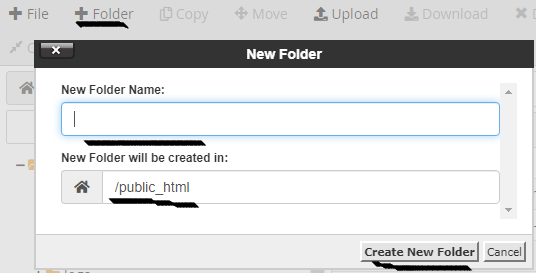
Click on the + icon as highlighted above. The new folder name field can be given any particular name provided it's a unique name to easily remember. It is always advisable to ensure you are creating the folder in the public_html as that's where live data is located. Click on the Create New Folder button to proceed.
9. Select all file except zip file in the website files folder you want to copy files from

You can select use Select All command as marked in black in the screenshot or select one file inside (to-copy folder) and ctrl + A to select all as well.
10. Right click to copy files.
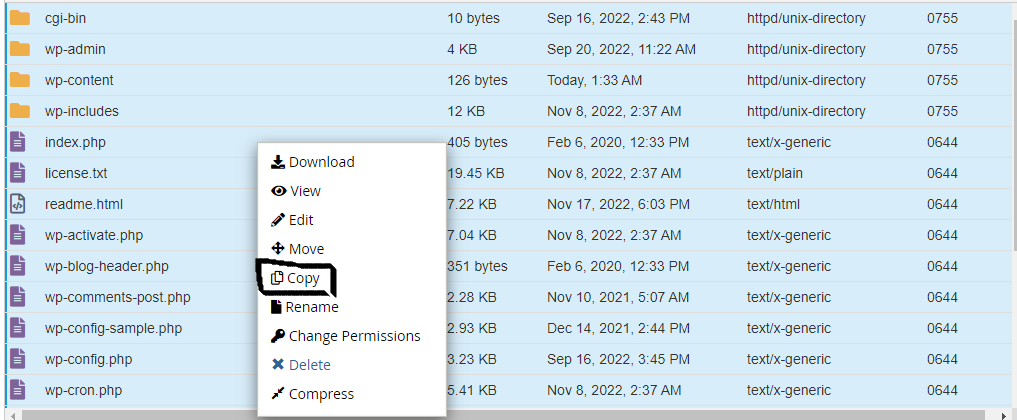
11. Right click on the wp-config and click on edit in the new folder you have copied the files successfully.
 12. Change the database name, user and password - These details were created in previous steps and therefore these credentials should be available and pasted to the highlighted spaces. Ensure the credentials are bound between in the '' the two singe quotes in the code.
 13. Navigate in the phpMyAdmin and click on the new database you created files in. Under wp_options change the siteurl to enable your site to be reachable online according to the new site name.
 14. Set the new site Wordpress Login credentials under wp_users i.e within the new database you copied files to.
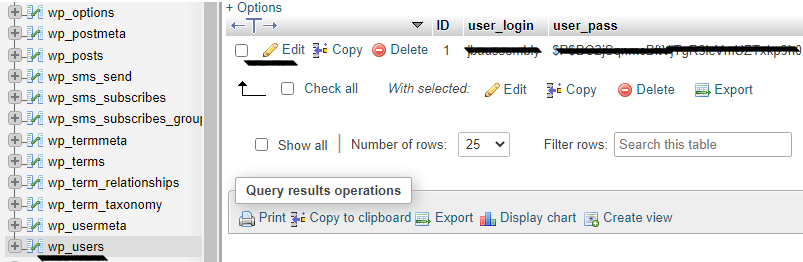
Click on Edit to set your own preferred username and password.
N/B: These logins you are setting are for WordPress Dashboard Logins.
Below screenshot shows how to set the login credentials. Please remember to set the user_pass as MD5 on the marked option icon. Copy the username and password in a safe file for your remembrance purposes.
Click Go to save the changes.
15. Login to WordPress with credentials already saved. - The aim of logging in is to make sure the permalinks are well set to get lid of broken links.
Under Settings in Wp_Admin dashboard, click on the Permalinks and set it as Post Name which is the most recommended option to choose from.
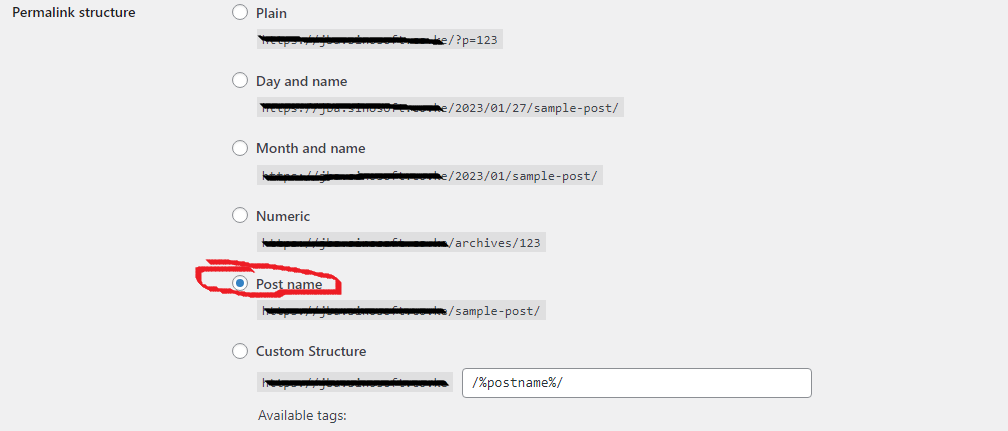
Click on the Save Changes.
Visit the new cloned site and ensure the site is reachable and it is reflecting on the browser.
If you need specific help, call us directly or WhatsApp at +254105503412



